
If you want to know how to integrate the Google Ads agent with the MCP server, just go through the blog How smart teams use Google Ads automation to analyse and optimise performance in 2026. After the complete setup, you can ask for any metrics, and it will give the data.
The data is always there, but the main problem is what to ask. If you connect your AI agent, that sounds good. A metric that will explicitly describe the issue is important so that the agent can make some changes that need to be done to solve the issue.
There are a lot of metrics that help to identify the issue. In this blog, you can get some important 10 metrics that help to analyse your campaign performance. So that you can modify the changes that may fix the problem. A Google Ads agent helps you.
The 10 metrics you can ask a Google Ads Agent
Just ask a question in plain English to the Google Ads MCP agent. It will generate arguments from the question and send them to the MCP server tool, and then it will give the exact metric data. Let’s see the metrics with the question and the response.
To ask a question, open the Gemini CLI in CMD or the VS Code terminal.
C:\Users\Your_name>geminiThe type ‘/mcp’ will display the connected MCP server and its available tools.
If you see ‘Starting…’ or ‘MCP server disconnect,’ then run the command below in CMD
pipx run --spec git+https://github.com/googleads/google-ads-mcp.git google-ads-mcpYou can ask questions with or without a ‘date range.’
1. Click-through rate (CTR) metric
This metric represents the value of total visits and click counts of your campaign. This value represents a percentage. If this value is high, then your ad creatives are attractive. Low CTR happens because of two main reasons.
Weak ad copy for your campaign
Your ad appears for irrelevant searches
Question: “Give the total click-through rate of my campaign <campaign name> within the <date range> for the <customer ID>.”
You can ask a specific campaign question or a question about the overall campaign.
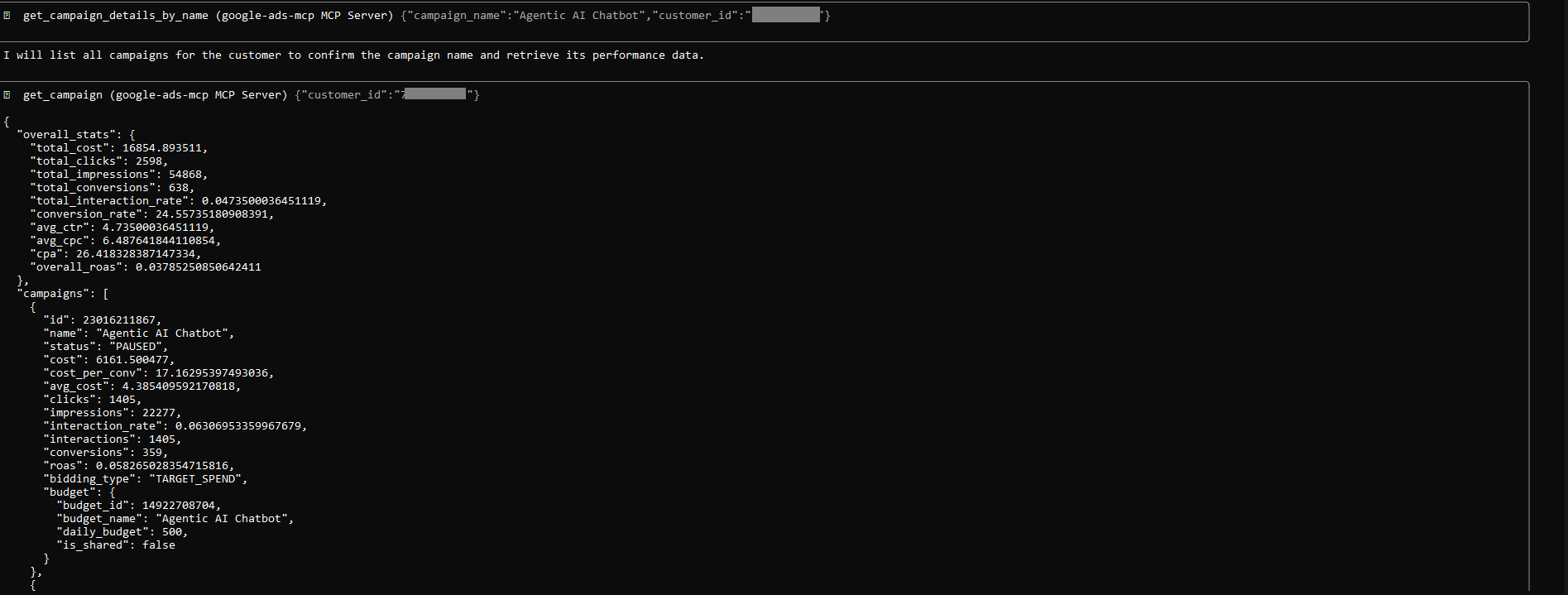

2. Cost Per Click (CPC) metric
Cost per click is a bidding model where you pay only when a user clicks your ad. It’s not calculated by impressions. It is calculated only on user engagement. This data helps businesses to measure their budget, track their cost of driving traffic, and help to measure their marketing advertisements.
Question: “Give the total Cost per click (CPC) value of my campaign <campaign name> within the <date range> for the <customer ID>”
3. Conversion rate metric
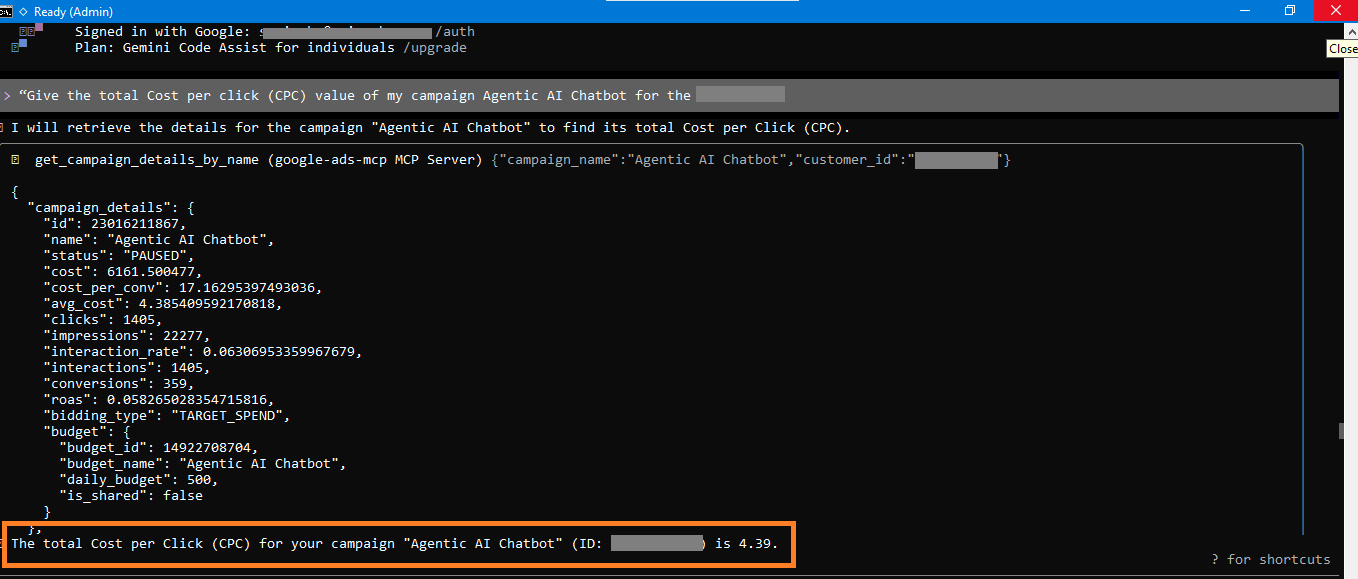
Conversion rate is a crucial metric. From this, businesses can identify the effectiveness of their marketing campaigns. This indicates the percentage of your website visitors who turn into customers or take the actual action you intend to do, such as form filling, making a purchase, making a call, etc.
From this metric data, businesses can optimise their ad spend value, improve their ad copy for a campaign, or optimise the quality of their landing pages.
Question: “Give the total conversion rate of my campaign <campaign name> within the <date range> for the <customer ID>.”
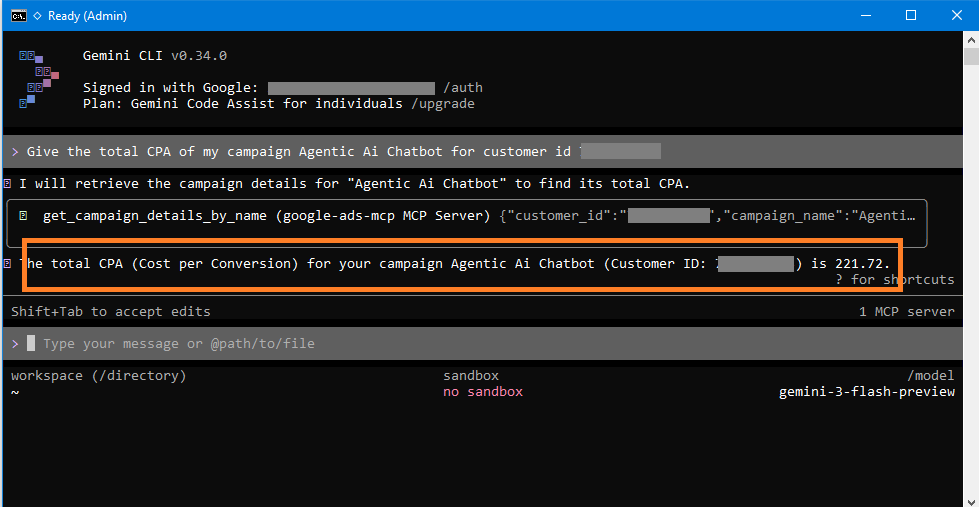
4. Cost Per Conversion (CPA) metric
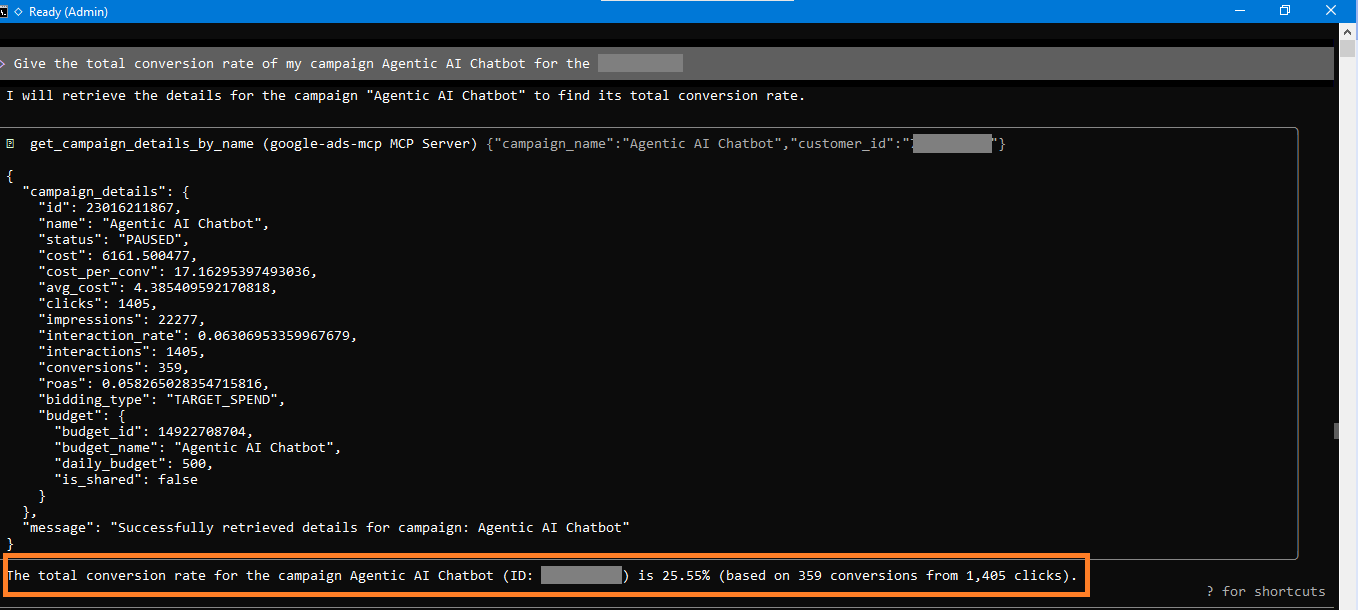
This metric helps businesses to understand their cost for acquiring a new customer via a specific action. This metric analysis is important for their budget management, ad performance evaluation, and effective decision-making.
It is calculated by dividing the total cost of conversions by the total number of conversions. You don’t need to do these calculations. Our Google Ads agent will take care of it and give you a perfectly readable answer.
Question: “Give the total CPA of my campaign <campaign name> within the <date range> for the <customer ID>.”
5. Quality score metric
The quality score metric measures your ad’s engagement, user experience, and ad relevance. It refers to a score from 1 to 10 for every keyword based on expected CTR. A high-quality score improves ad ranking, lowers CPC for your ad, and reaches target audiences. This Google Ads agent explicitly defines the quality score for each keyword in detail.
Note: If your campaign is a “search campaign,” then only you can get the quality score data through the API. But if yours is a “smart campaign,” then you can’t get this data manually.
For a search campaign, ask this question.
Question: “List all keywords with their quality score and suggest improving the low score for the campaign <campaign name> with customer ID <customer ID>”
(This example campaign is a Smart campaign, so the API does not return a Quality Score for it.)
6. Impression share
Impression share is one of the important metrics that help businesses to understand their visibility and effectiveness to their targeted audience. A high impression share indicates it frequently reaches the users while a low impression share value indicates that you need to improve your ad visibility.
By understanding this data businesses can optimise their ad visibility, competitiveness, and overall campaign performance. Our Google Ads agent will describe your impression share value in an understandable way.
Question: “Get the impression share by campaign <campaign name> with customer ID <customer ID> and suggest some ways to improve it.”
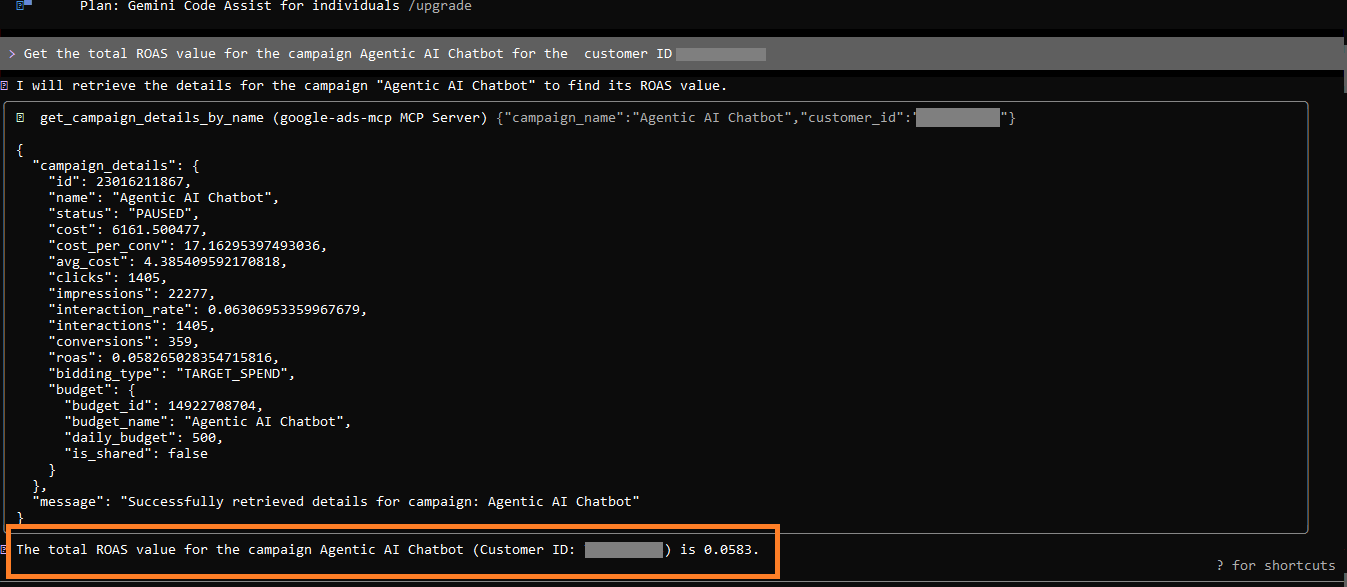
7. Return on Ad Spend (ROAS) metric
This metric shows the actual cost you gained from the advertisement. It is calculated by dividing the total revenue by ad spend. If you spend 3000 on your ad and then you get 15000 as total revenue, then your ROAS value is 5x. It means you earned 5 times your ad spend in revenue. That is revenue, not profit, because product and other costs still need to be subtracted. You don’t need to calculate it manually. Our Google Ads agent calculates this from API data and summarizes it for your understanding.
Question: “Get the total ROAS value for the campaign <campaign name> in date range <date range> with customer ID <customer ID>.”
8. Search terms
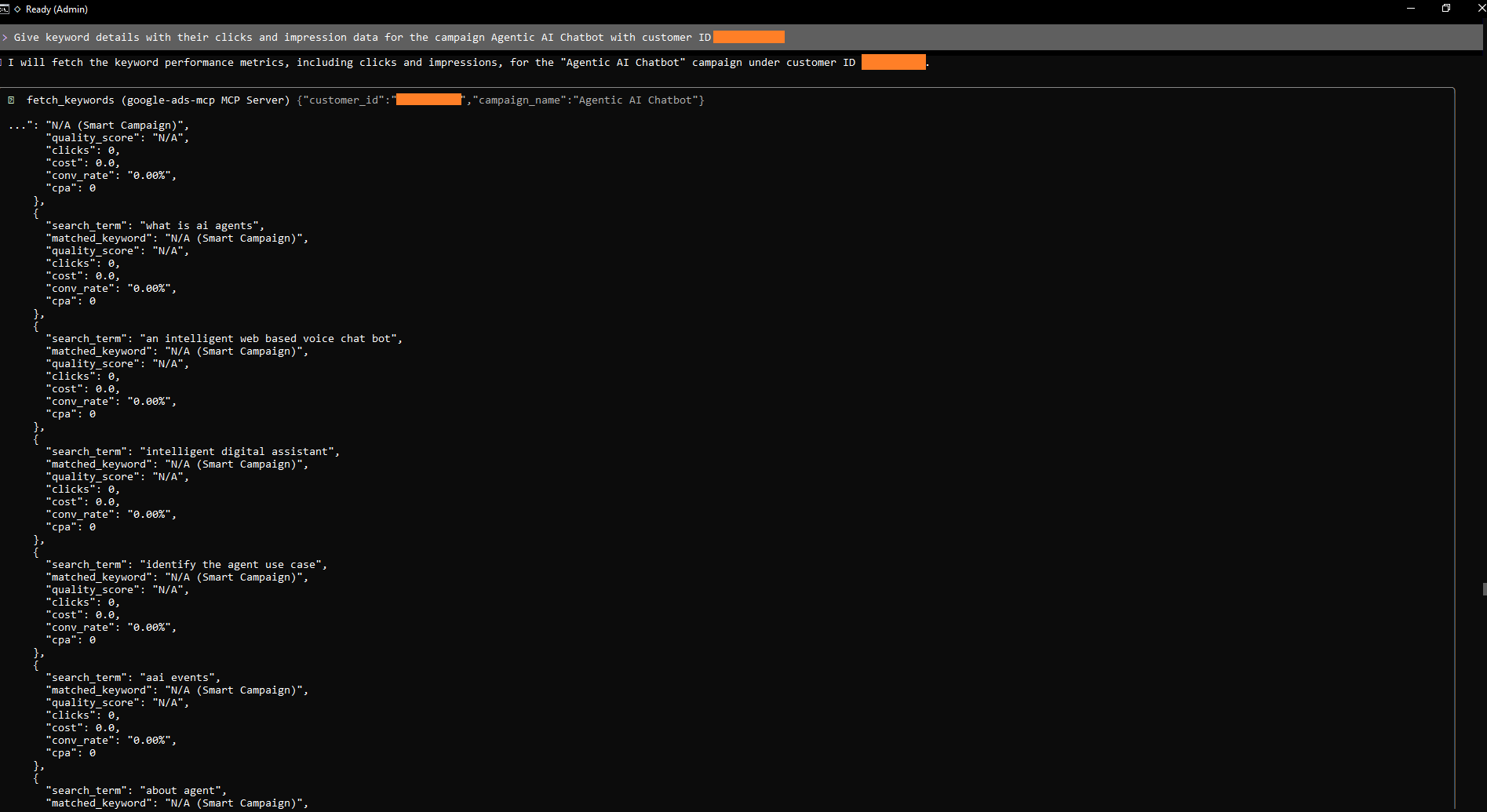
Search keywords are helpful to businesses to gain a targeted audience for their goals. Setting up correct keywords prevents your ad from being visible to irrelevant searches. So that your ad will reach the correct people and you can get qualified leads as well.
Google Ads keywords are the backbone of any Google Ads campaign.
Question: “Give keyword details with their click and impression data for the campaign <campaign name> in date range <date range> with customer ID <customer ID>.”
9. Conversion Value
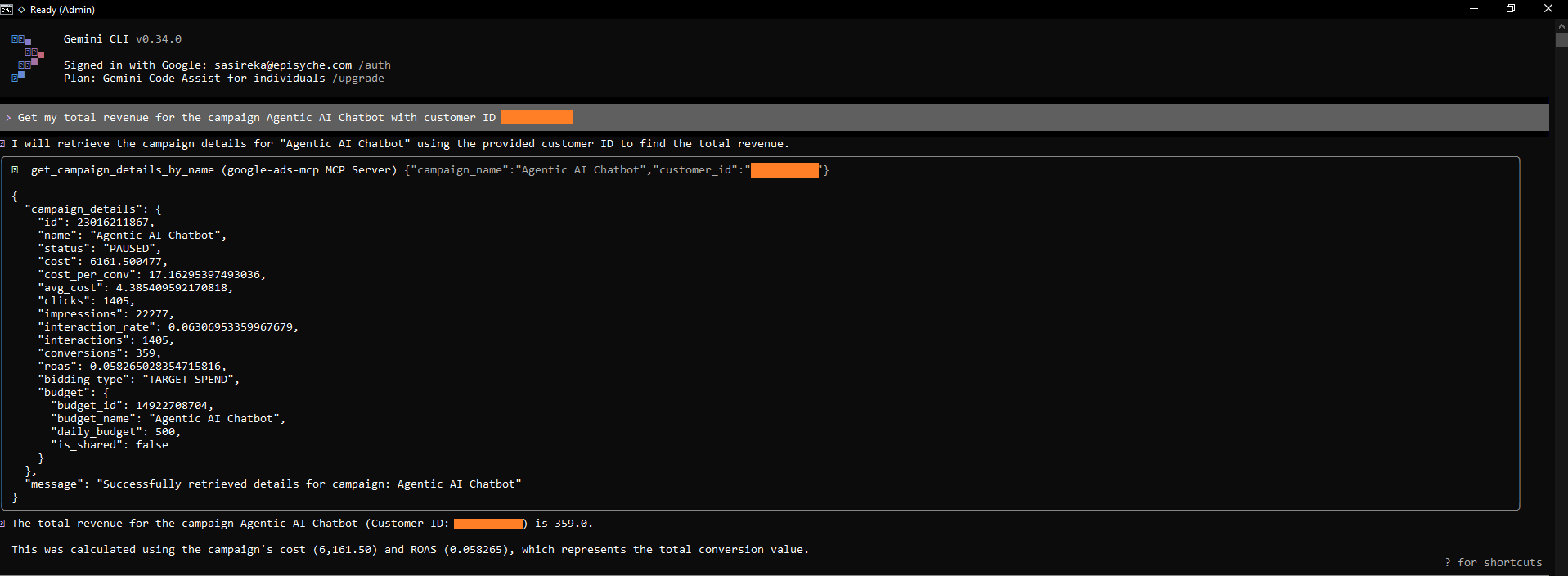
This conversion value metric helps businesses to calculate the true impact of their ad campaigns. This is also known as total revenue. This helps businesses to identify and focus on high conversion value and allows businesses to optimise their campaign’s ROI. Our Google Ads agent will explain the data clearly.
Question: “Get my total revenue for the campaign <campaign name> in date range <date range> with customer ID <customer ID>.”
10. Device metrics
Each device type performs differently. Business people should focus on this section too. Because not all visitors visit your website through only mobile or only desktop. This metric helps them to identify the performance of their ads. They can easily identify which type acquires more customers and optimise the issue if acquisition is lower in mobile than on desktop.
They can identify the issue in load speed or responsiveness between device types by analysing this data. So that conversion will increase. Google Ads agents describe the details in a clean and understandable way.
Question: “Show me the device performance of my campaign <campaign name> in date range <date range> with customer ID <customer ID>.”
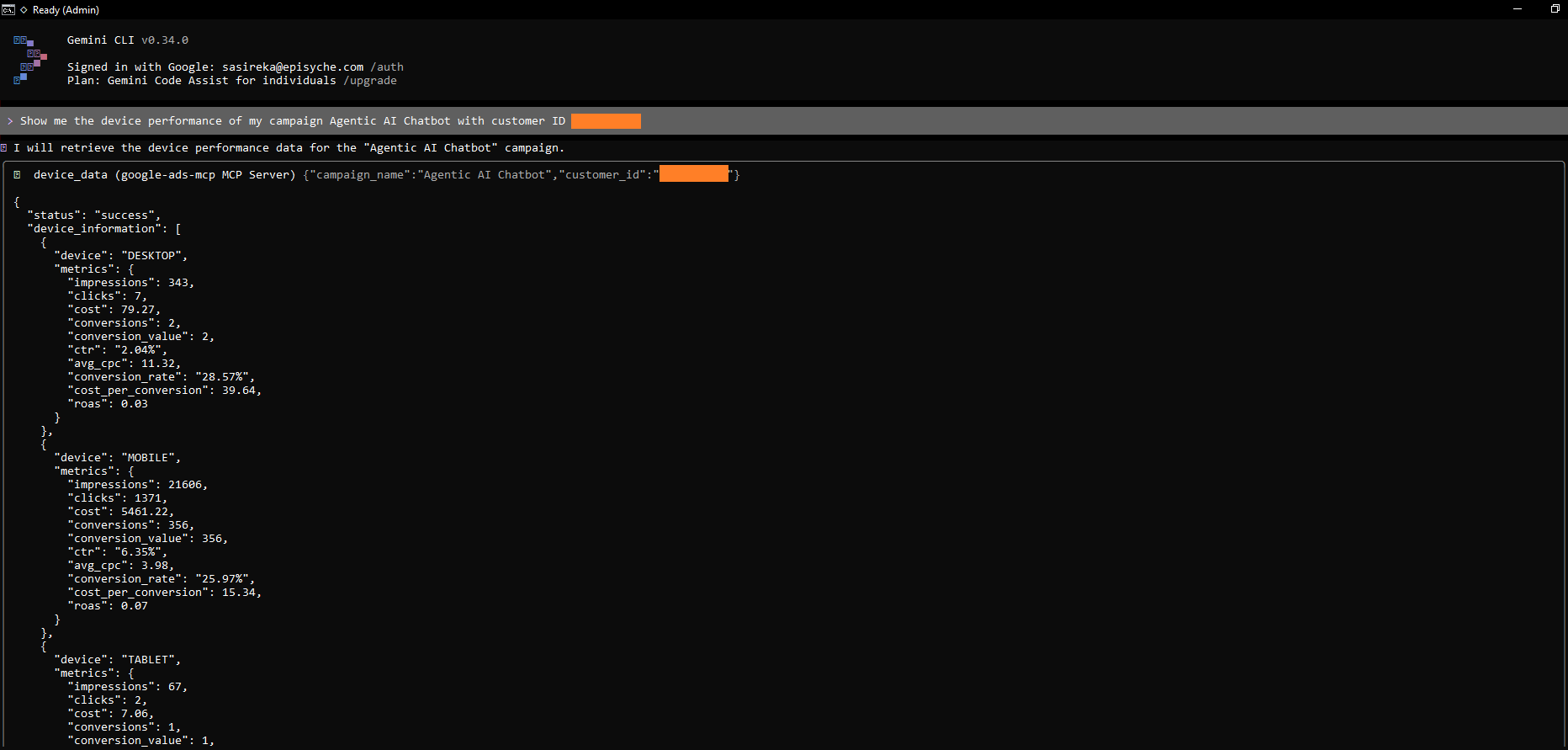
These are the top metrics you can get from the Google Ads agent through the MCP server. No need to form arguments like the standard API. Here the agent will handle all the hard parts.
How Agentzee delivers all these metrics in a single click
Running these metrics using the agent via the server is already a good way. But you can make this process ultra-fast by using our product Agentzee. From a single file you can generate a report with the desired sections.
Agentzee connects your Google Ads account through OAuth. Then it connects to a Google Ads agent that fetches all your data through the MCP server and finally you can get a report in the UI. No need to switch dashboards, no manual report creation, just one click.
You can ask a question or prompt for data that you want. The question may look like “Generate a Google Ads report that describes device performance and which keywords derive more impressions,” or simply you can ask “Generate a report for Google Ads” in Agentzee.
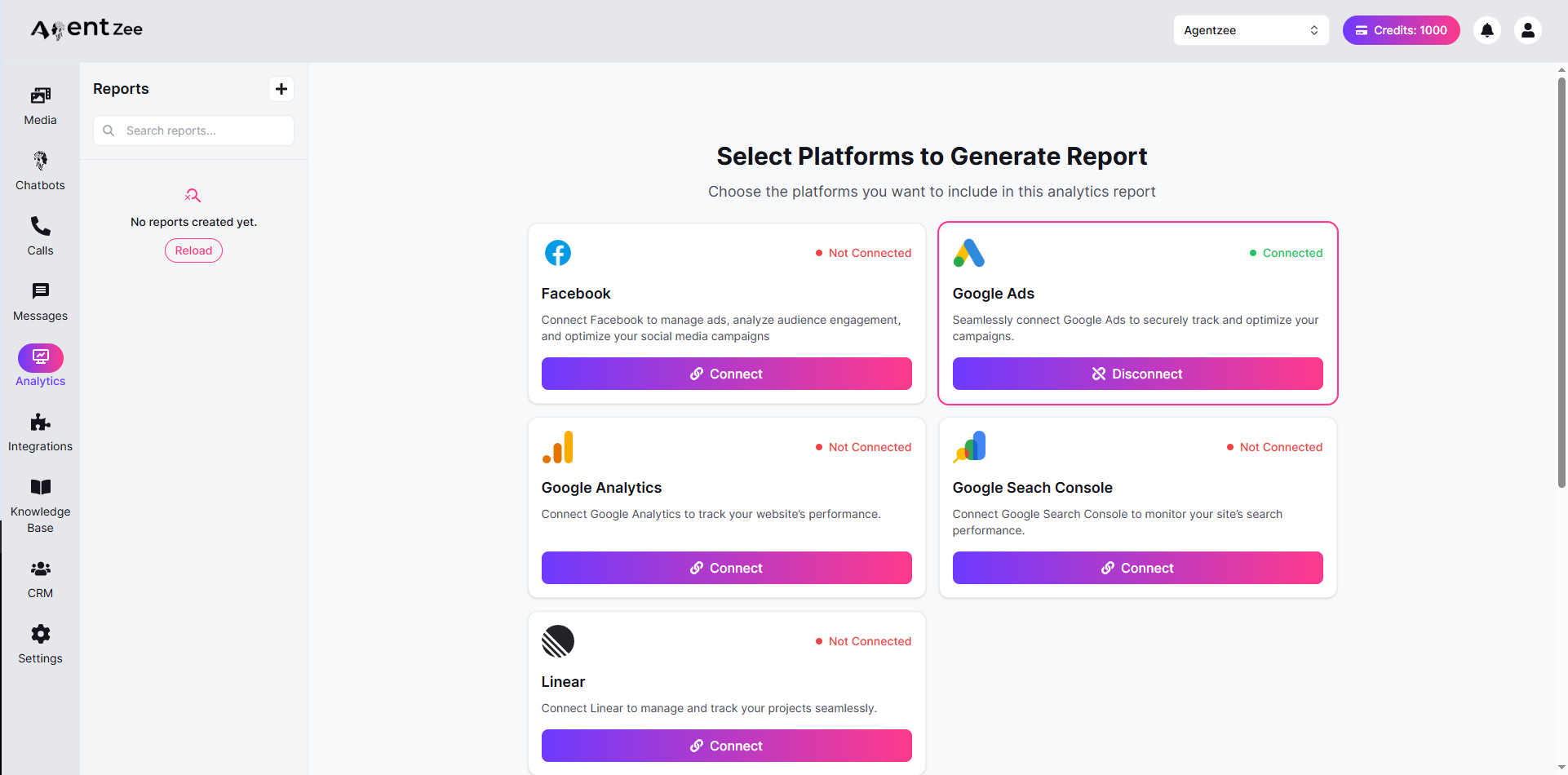
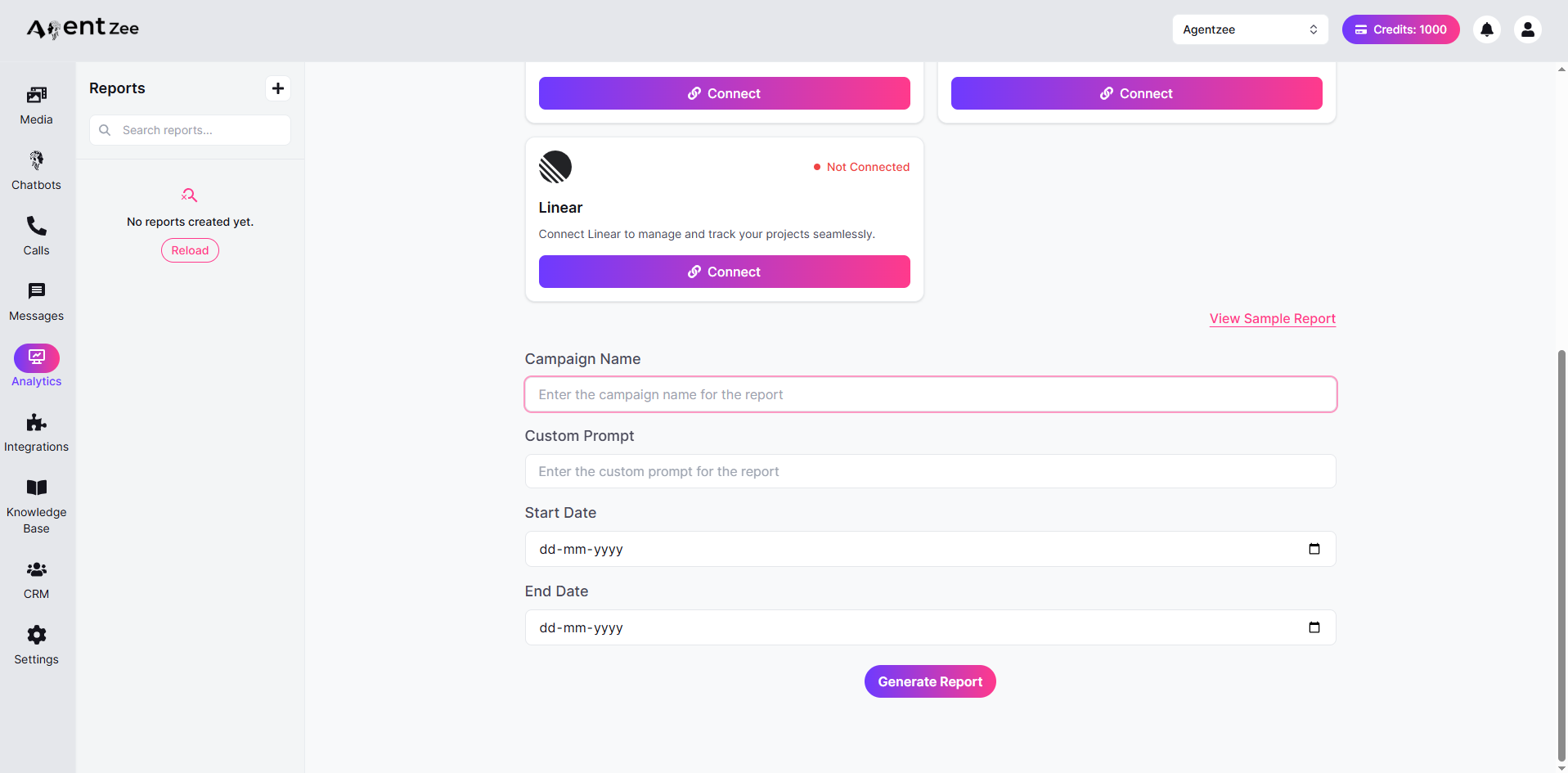
Then click the “Generate Report” button. The report will appear after a few minutes.
Report:
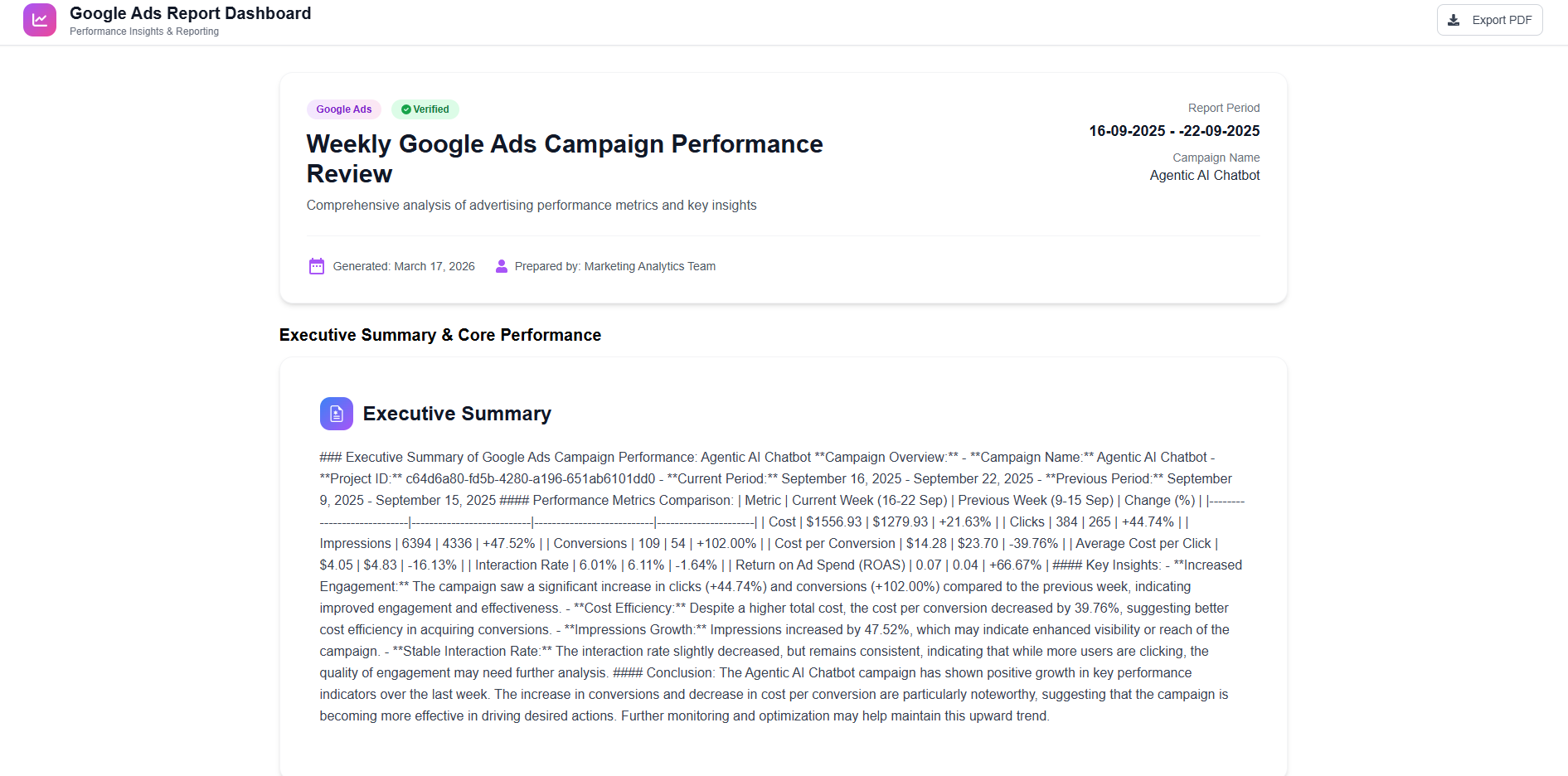
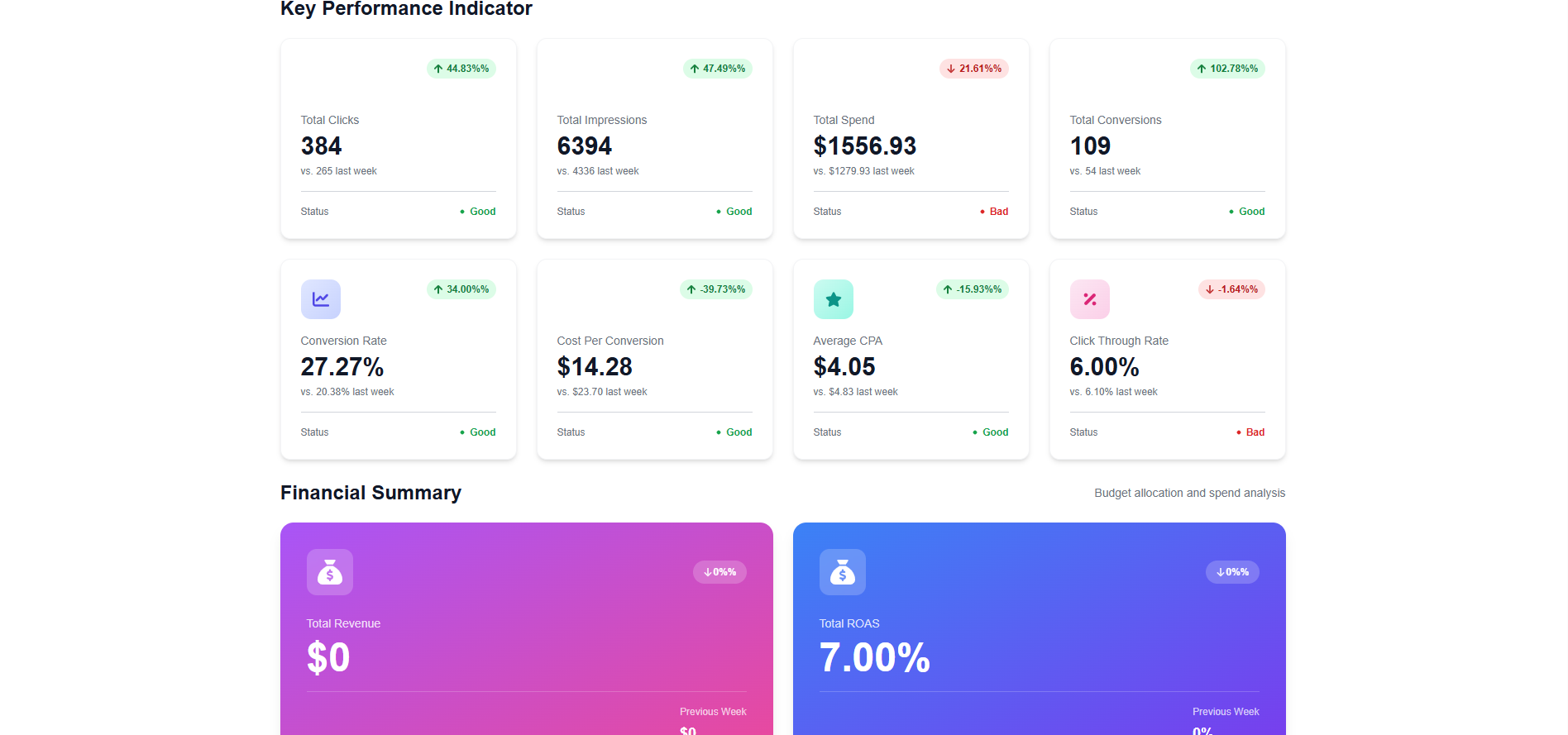
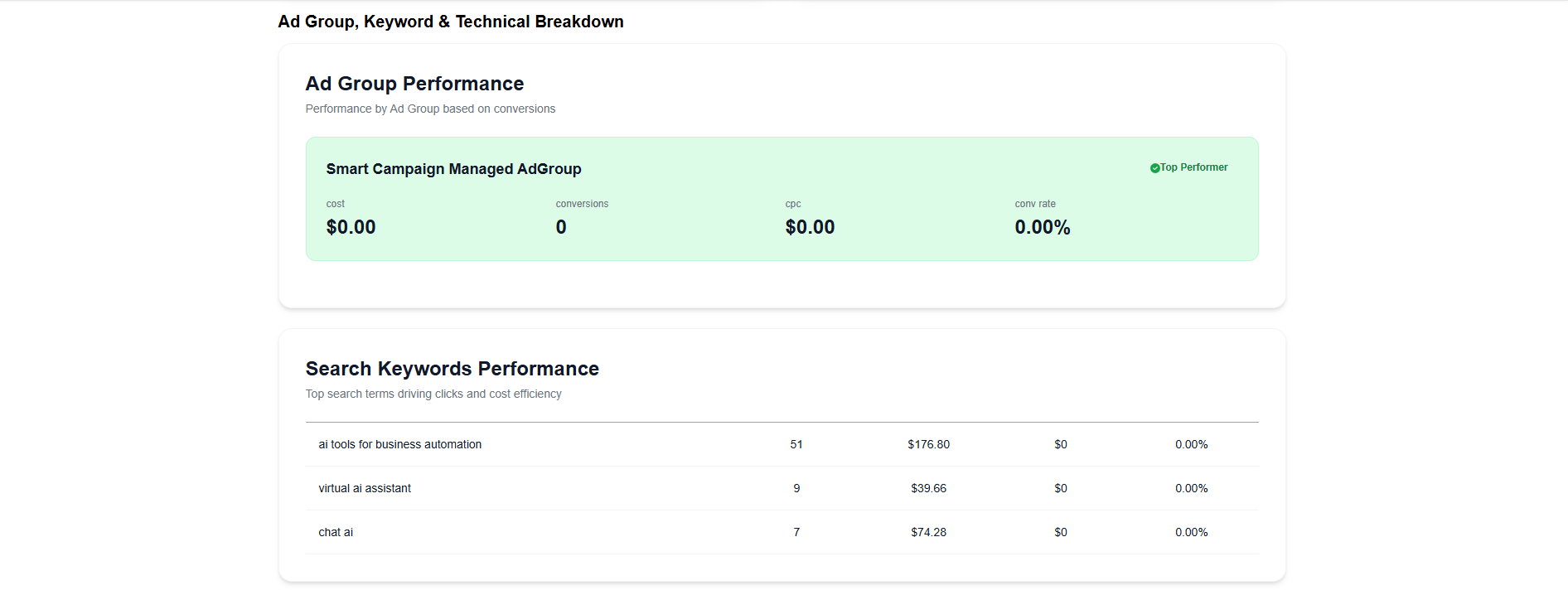
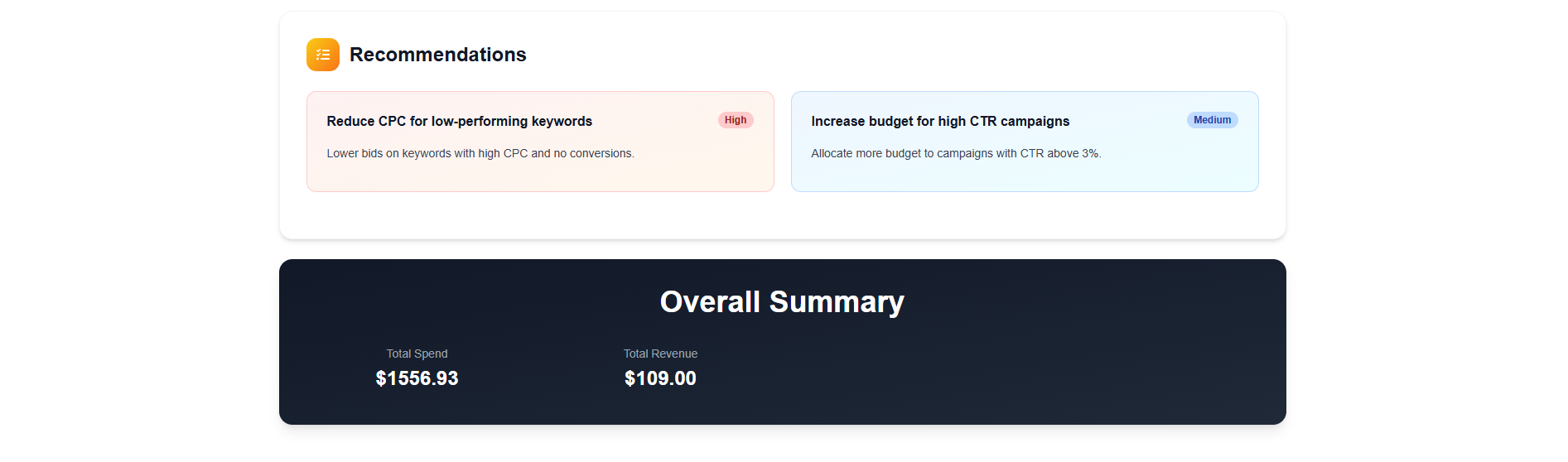
Like this, you can get your report from anywhere and at any time.
Conclusion
The Google Ads dashboard itself has a lot of data. So fetching it for separate campaigns every day or week is so difficult. Google Ads agent retrieves data in plain text through the MCP server. It makes the action simpler and reduces the searching time. You don’t need to open the dashboard every time you want to see the data.
Just open an agent and ask a question and it will reply to you with a detailed answer. By using Agentzee, you can generate this in a single click. It saves more time. Even you don’t need to ask a question to retrieve each section like conversion value, total revenue, or ROAS. Just by asking to generate a report, you’ll get all these.
You can add custom sections if needed. This agent makes your way simple and saves your quality time. The data will always be there. Now you need to ask the right question.
Kindly refer our analytics agent to get more reports like this for your account