
WhatsApp messages are typically opened and read far more often than email or SMS. The reason for this is that WhatsApp promotional messages roam around personal messages from our friends and relatives.
If WhatsApp marketing campaigns are that effective, then they shouldn’t be left behind. So let us look at the complete implementation of these WhatsApp template messages.
Implementation of WhatsApp marketing campaigns:
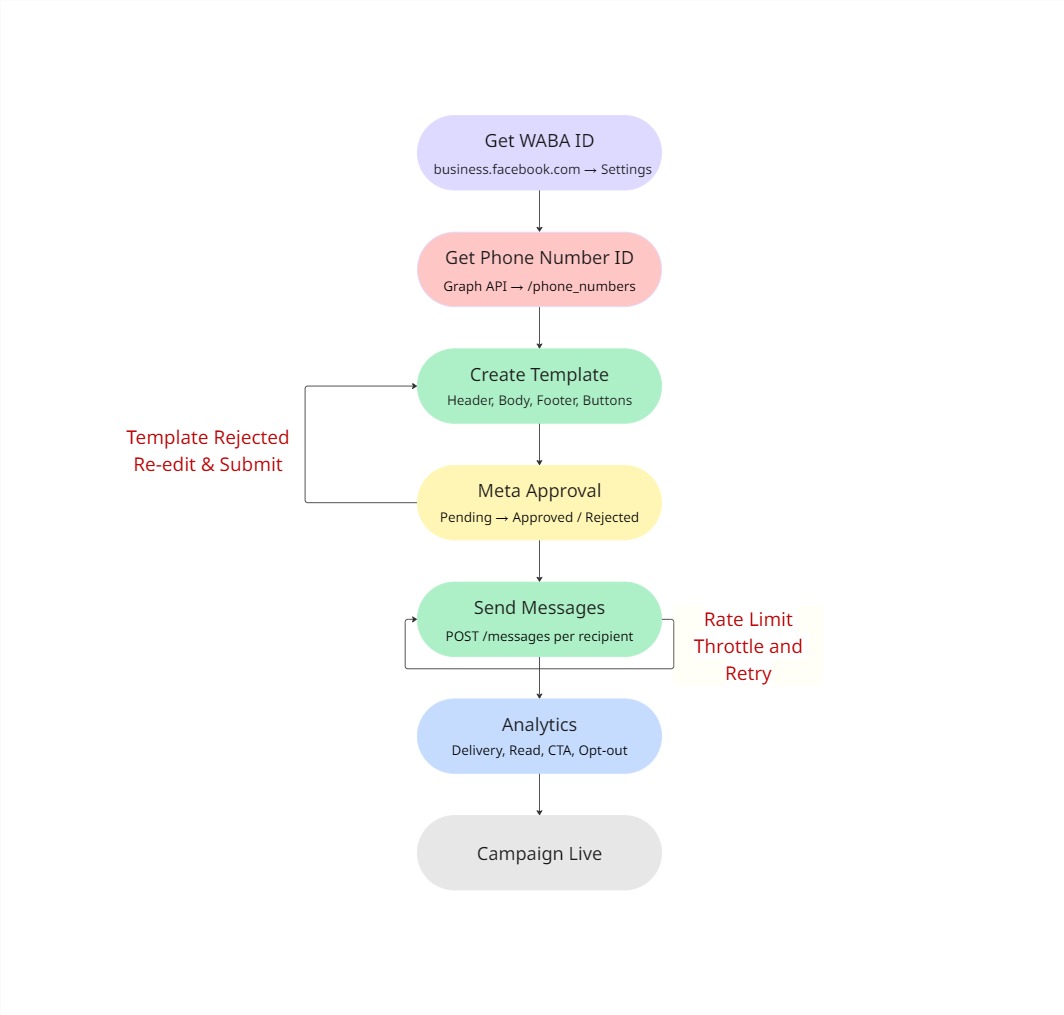
The complete flow of this implementation is shown below:
Step 1: Get Your WABA ID
A WhatsApp marketing campaign sends template messages connected to phone numbers and provides analytics. This can be found using a WhatsApp Business Account (WABA) ID.
Where to Find It:
Log in to business.facebook.com.
Go to Business Settings.
Click on Accounts. Then, WhatsApp accounts.
Choose your account. Your WABA ID will be on the side.
Fetch WABA ID using the Meta Graph API:
GET [https://graph.facebook.com/v24.0/me/businesses?access_token=YOUR_USER_TOKEN](https://graph.facebook.com/v24.0/me/businesses?access_token=YOUR_USER_TOKEN)The response JSON will have all your meta-account-linked businesses. In that list, look for the whatsapp_business_accounts field.
That will be your WABA ID. Keep it safe; you will use it in every API call. Without the WABA ID, you can’t create the following:
Create templates
Manage phone numbers
Send messages
Check campaign analytics
Step 2: Get Your Phone Number ID
WhatsApp has a phone number and an internal phone number ID. This API needs the Phone Number ID, not the number.
This internal phone number ID can be fetched using the mentioned Graph API:
GET https://graph.facebook.com/v24.0/YOUR_WABA_ID/phone_numbers?access_token=YOUR_ACCESS_TOKENThe response will have a data list. Each item has:
ID: The phone number ID that will be used to make API calls
display_phone_number: The regular number of customers seen on WhatsApp.
verified_name: The business name in the chat header.
quality_rating: The colours will either be GREEN, YELLOW, or RED based on user feedback.
A low-quality rating that is “RED” in colour (in some cases, “YELLOW”) can stop you from sending messages.
For safer proceedings, make sure the template is GREEN in colour before running a campaign.
Don’t spam a conversation with templates.
Always give a clear opt-out option for the user.
Step 3: Template Creation
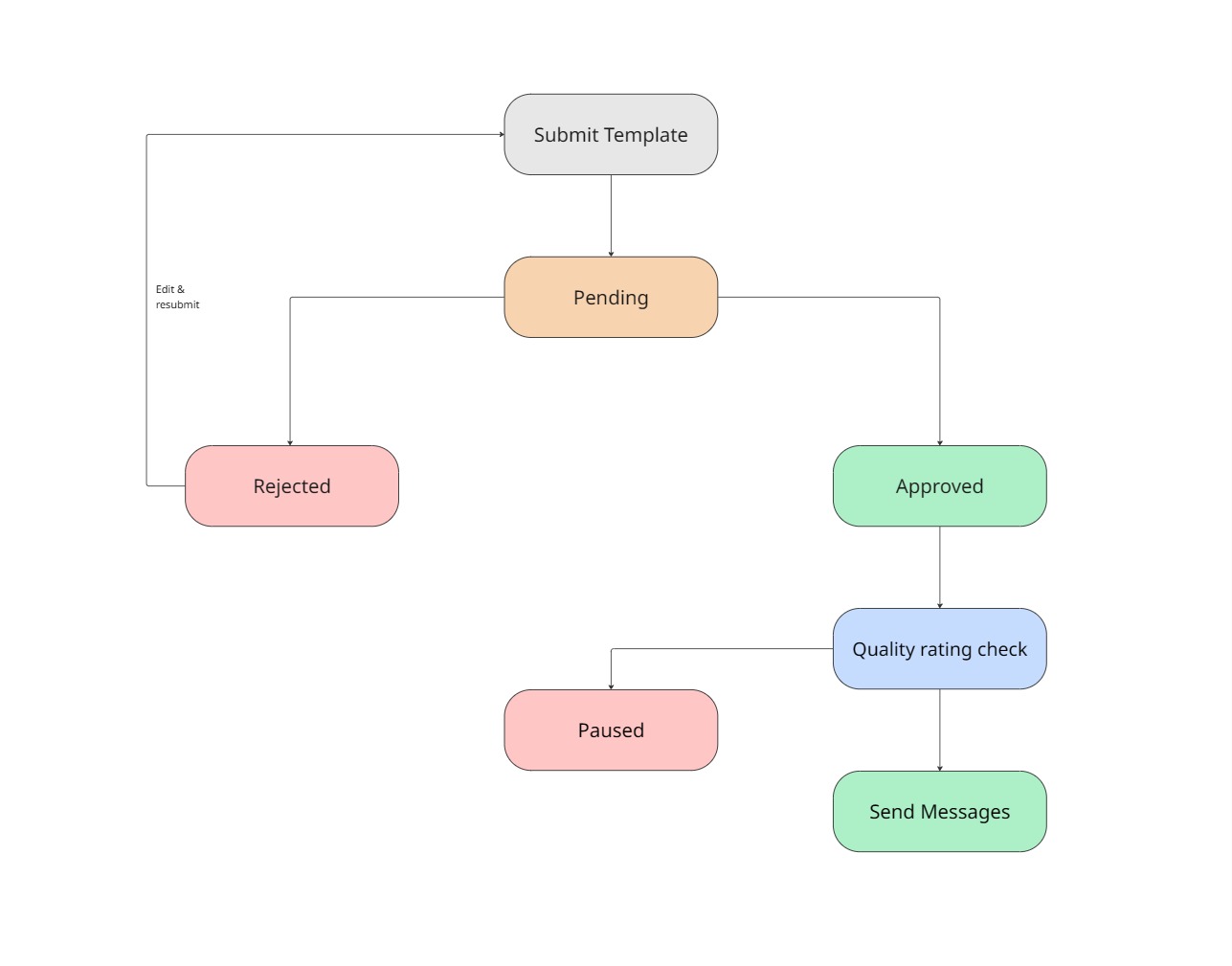
The whole process of template implementation involves these steps:
Why are templates important? It’s because WhatsApp has a policy that a conversation can be initiated only with a pre-approved message template. So, a template is the only way to start a conversation with customers through the API. Once a customer messages you, you can also send free-form (non-template) replies within the 24-hour customer service window.
A small sample code snippet:
import requests

ACCESS_TOKEN = "your_access_token"
WABA_ID = "your_whatsapp_business_account_id"  # Different from PHONE_NUMBER_ID

response = requests.post(
    f"https://graph.facebook.com/v24.0/{WABA_ID}/message_templates",
    headers={"Authorization": f"Bearer {ACCESS_TOKEN}", "Content-Type": "application/json"},
    json={
        "name": "season_sale_promo",
        "language": "en_US",
        "category": "MARKETING",
        "components": [
            {"type": "HEADER", "format": "TEXT", "text": "🔥 Exclusive Offer Just for You!"},
            {"type": "BODY", "text": "Hi {{1}}, our {{2}} is now live! Enjoy up to {{3}}% off on your favorite products. Don't miss out—grab the deal before it ends!", "example": {"body_text": [["Priya", "Summer Sale", "30"]]}},
            {"type": "FOOTER", "text": "Reply STOP to opt out."},
            {"type": "BUTTONS", "buttons": [{"type": "URL", "text": "Shop Now", "url": "https://example.com/sale/{{1}}", "example": ["https://example.com/sale/summer-sale"]}]}
        ]
    }
)

print(f"{'✅ Template Created' if response.status_code == 200 else '❌ Failed'} → {response.json()}")
WhatsApp message template sections:
HEADER: At the top, either one of these (text, image, video, or document) will be shared as the header.
BODY: The actual content area in a template message. It can have variables called “placeholders,” e.g., {{1}}, {{2}}.
FOOTER: A small text line at the end of the message for an ending note.
BUTTONS: An action button that does actions as per the business needs.
This is the API Call to be made to create a template
POST [https://graph.facebook.com/v24.0/YOUR_WABA_ID/message_templates](https://graph.facebook.com/v24.0/YOUR_WABA_ID/message_templates)Request body (JSON):
{
  "name": "season_sale_promo",
  "language": "en_US",
  "category": "MARKETING",
  "components": [
    {
      "type": "HEADER",
      "format": "TEXT",
      "text": "🔥 Exclusive Offer Just for You!"
    },
    {
      "type": "BODY",
      "text": "Hi {{1}}, our {{2}} is now live! Enjoy up to {{3}}% off on your favorite products. Don’t miss out—grab the deal before it ends!",
      "example": {
        "body_text": [["Priya", "Summer Sale", "30"]]
      }
    },
    {
      "type": "FOOTER",
      "text": "Reply STOP to opt out."
    },
    {
      "type": "BUTTONS",
      "buttons": [
        {
          "type": "URL",
          "text": "Shop Now",
          "url": "https://example.com/sale/{{1}}",
          "example": ["https://example.com/sale/summer-sale"]
        }
      ]
    }
  ]
}
While creating a template:
A max of 1024 characters is advised in the BODY section.
Use a language code supported by Meta (for example, en_US or hi).
An opt-out from the campaign option in the footer is always appreciated.
Use variables for dynamic, customised content as per the user.
Step 4: Template Approval by Meta
Once your WhatsApp template is submitted, Meta will review the template and make sure it is as per their regulations. This is an inevitable step for any WhatsApp marketing campaign.
You will get one of these statuses for your WhatsApp template:
Pending: Your template is being reviewed by Meta. This process might usually take from a minute to 24 hours.
Approved: Once approved, the template is ready to use. Users can now send it to customers.
Rejected: The template has been rejected. Also, the reason for rejection will be provided in the API response.
Paused: The template has already been approved but is now suspended due to low user engagement.
Make a GET request to check the current status of your WhatsApp template:
GET [https://graph.facebook.com/v24.0/{WABA_ID}/message_templates?name=season_sale_promo&access_token={TOKEN}](https://graph.facebook.com/v24.0/%7BWABA_ID%7D/message_templates?name=season_sale_promo&access_token=%7BTOKEN%7D). Now, check for the field named “status” of the particular template in the response. This process can be automated in the backend by checking the template status every 5 minutes to further proceed with the WhatsApp marketing campaign.
If the WhatsApp Template you created is rejected
Read the API response carefully, as it is always fixable.
Common reasons for rejection include language and missing opt-out restricted content categories.
Edit the WhatsApp template content. Resubmit it.
You cannot edit the WhatsApp template name.
Step 5: Sending Template Messages
Templates are made ready to be used for a WhatsApp marketing campaign. These template messages can be sent once they have been approved by Meta.
Pricing: Meta charges per delivered template message. The price depends on the template category (marketing, utility or authentication) and the recipient’s country, so check Meta’s current WhatsApp Business pricing before you budget a campaign.
A small sample code snippet:
import requests
import time

ACCESS_TOKEN = "your_access_token"
PHONE_NUMBER_ID = "your_phone_number_id"

phone_numbers = ["919876543210", "919876543211", "919876543212"]

for number in phone_numbers:
    response = requests.post(
        f"https://graph.facebook.com/v24.0/{PHONE_NUMBER_ID}/messages",
        headers={"Authorization": f"Bearer {ACCESS_TOKEN}", "Content-Type": "application/json"},
        json={
            "messaging_product": "whatsapp",
            "to": number,
            "type": "template",
            "template": {
                "name": "season_sale_promo",
                "language": {"code": "en_US"},
                "components": [
                    {"type": "body", "parameters": [{"type": "text", "text": "Priya"}, {"type": "text", "text": "Summer Sale"}, {"type": "text", "text": "30"}]},
                    {"type": "button", "sub_type": "url", "index": "0", "parameters": [{"type": "text", "text": "summer-sale"}]}
                ]
            }
        }
    )
    print(f"{number} → {'✅' if response.status_code == 200 else '❌'} {response.json()}")
    time.sleep(1)
/messages is the endpoint used for every outbound WhatsApp message. And for that, make a POST request with that endpoint:
POST https://graph.facebook.com/v24.0/{PHONE_NUMBER_ID}/messages](https://graph.facebook.com/v24.0/%7BPHONE_NUMBER_ID%7D/messagesRequest body (JSON):
{
  "messaging_product": "whatsapp",
  "to": "RECIPIENT_PHONE_NUMBER",
  "type": "template",
  "template": {
    "name": "season_sale_promo",
    "language": {
      "code": "en_US"
    },
    "components": [
      {
        "type": "body",
        "parameters": [
          { "type": "text", "text": "Priya" },
          { "type": "text", "text": "Summer Sale" },
          { "type": "text", "text": "30" }
        ]
      },
      {
        "type": "button",
        "sub_type": "url",
        "index": "0",
        "parameters": [
          {
            "type": "text",
            "text": "summer-sale"
          }
        ]
      }
    ]
  }
}
The “language[‘code’]” field must include the country code, and the “to” field shouldn’t have a “+” sign or spaces at the front for your WhatsApp marketing campaign.
A successful call returns a messages array with a message ID. Store this ID. If the message hasn’t been delivered within a matter of a few seconds, then you will need it to track the delivery status of your WhatsApp messages for the next 24-hour window until it is delivered.
Sending WhatsApp messages
For WhatsApp marketing campaigns, use a message queue to process sends
WhatsApp has rate limits for sending messages per phone number. Exceeding them might cause a throttling risk or a downgrade in the template’s quality rating.
Recommended practices while sending template messages in your WhatsApp marketing campaign:
Throttle sends the per-number rate limit.
Retry failed sends with backoff.
Categorise your customer base and send customised template messages. This will lead to better customer engagement and a better quality rating of your template.
Step 6: Analytics Of Your WhatsApp Marketing Campaign
For any WhatsApp marketing campaign, the step that makes a successful campaign from an ordinary one is measuring, comparing, and analysing the results.
The WhatsApp Business API provides analytics at both the account level and the individual WhatsApp message level.
To fetch account-level analytics data via the Graph API, make a GET request to this link:
GET [https://graph.facebook.com/v24.0/{WABA_ID}/analytics?start={unix_ts}&end={unix_ts}&granularity=DAY&access_token={TOKEN}](https://graph.facebook.com/v24.0/%7BWABA_ID%7D/analytics?start=%7Bunix_ts%7D&end=%7Bunix_ts%7D&granularity=DAY&access_token=%7BTOKEN%7D).This endpoint returns the status of messages sent. You can see the following message statuses:
Sent: Sent at a particular moment by the API.
Delivered: received at the time specified on the recipient’s device.
Read: Read by the recipient at a particular moment.
Failed: Could not be delivered to the recipient.
Webhooks:
In your Meta’s Developer Portal, for your app, configure a webhook to receive real-time status updates for each WhatsApp message event that occurs. Meta will make a POST request to the endpoint you configured. This request is made whenever an event related to a WhatsApp message occurs. From the webhook event JSON, store the following fields in your database.
ID
phone number
status
timestamp
This provides a clean way to handle audit evidence for every WhatsApp message in your WhatsApp marketing campaign.
Template-Level Performance
You need to make a GET request to this link:
GET [https://graph.facebook.com/v24.0/{TEMPLATE_ID}/analytics?start={unix_ts}&end={unix_ts}&granularity=DAY&access_token={TOKEN}](https://graph.facebook.com/v24.0/%7BTEMPLATE_ID%7D/analytics?start=%7Bunix_ts%7D&end=%7Bunix_ts%7D&granularity=DAY&access_token=%7BTOKEN%7D).During the WhatsApp marketing campaign, maintain tabs on these key metrics:
Delivery rate: If it is below 95%, it indicates that there is a quality issue for your WhatsApp marketing campaign.
Read/delivered rate: The read rate is 60–80% for targeted WhatsApp marketing campaigns.
CTA click rate: Nearly 20% and up to 40% are expected to click through, depending on the offer for your WhatsApp marketing campaign.
Opt-out rate: Consistently, 2% are expected to opt out of your WhatsApp marketing campaign.
An Alternate Solution: Agentzee
If you would rather skip the API setup, have a look at our site, “Agentzee.”
Sign up on our website.
Navigate to the “Dashboard” page.
Choose the Messages section to start a WhatsApp marketing campaign.
Implement the following steps:
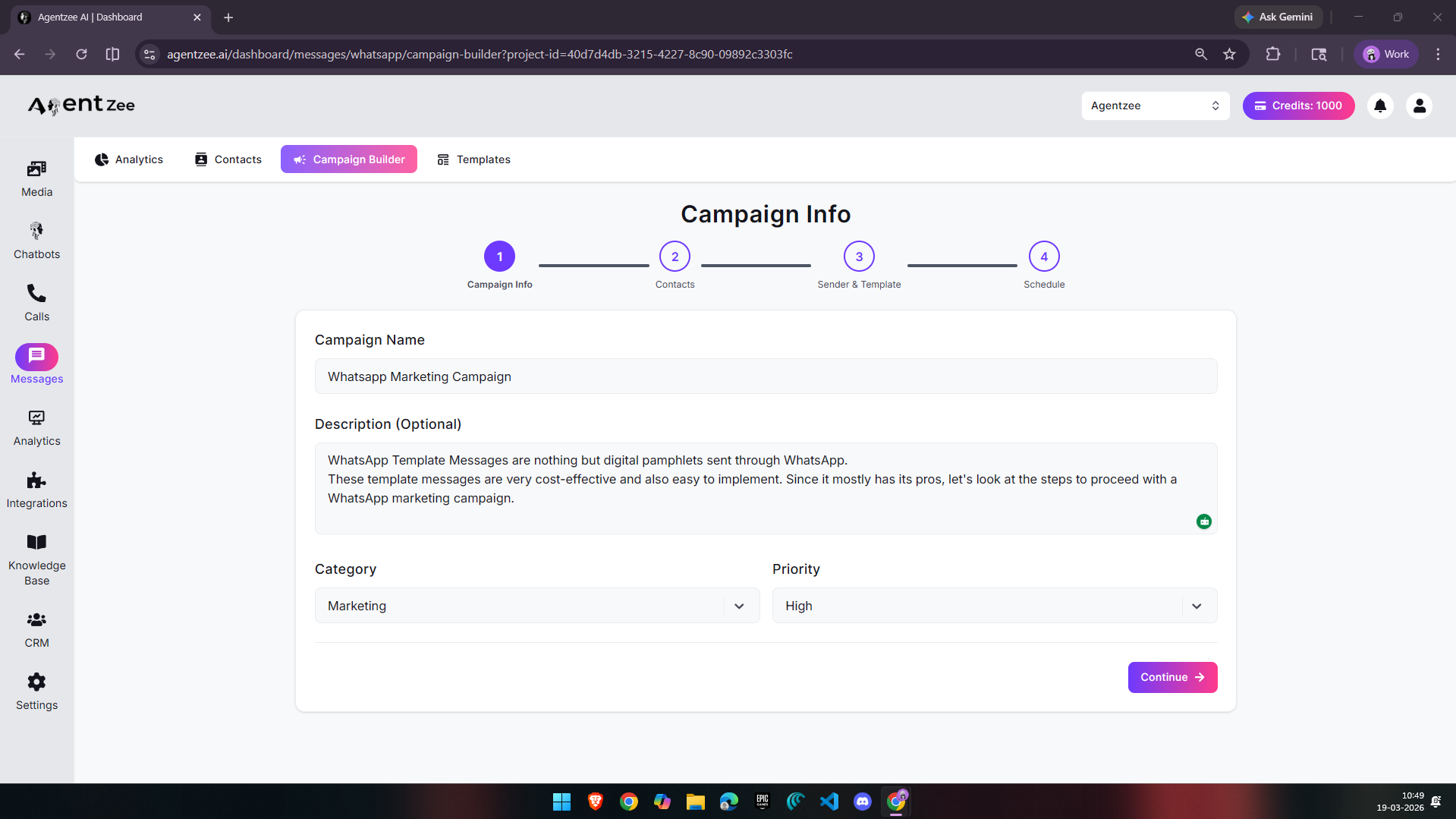
Step 1: Create a campaign.
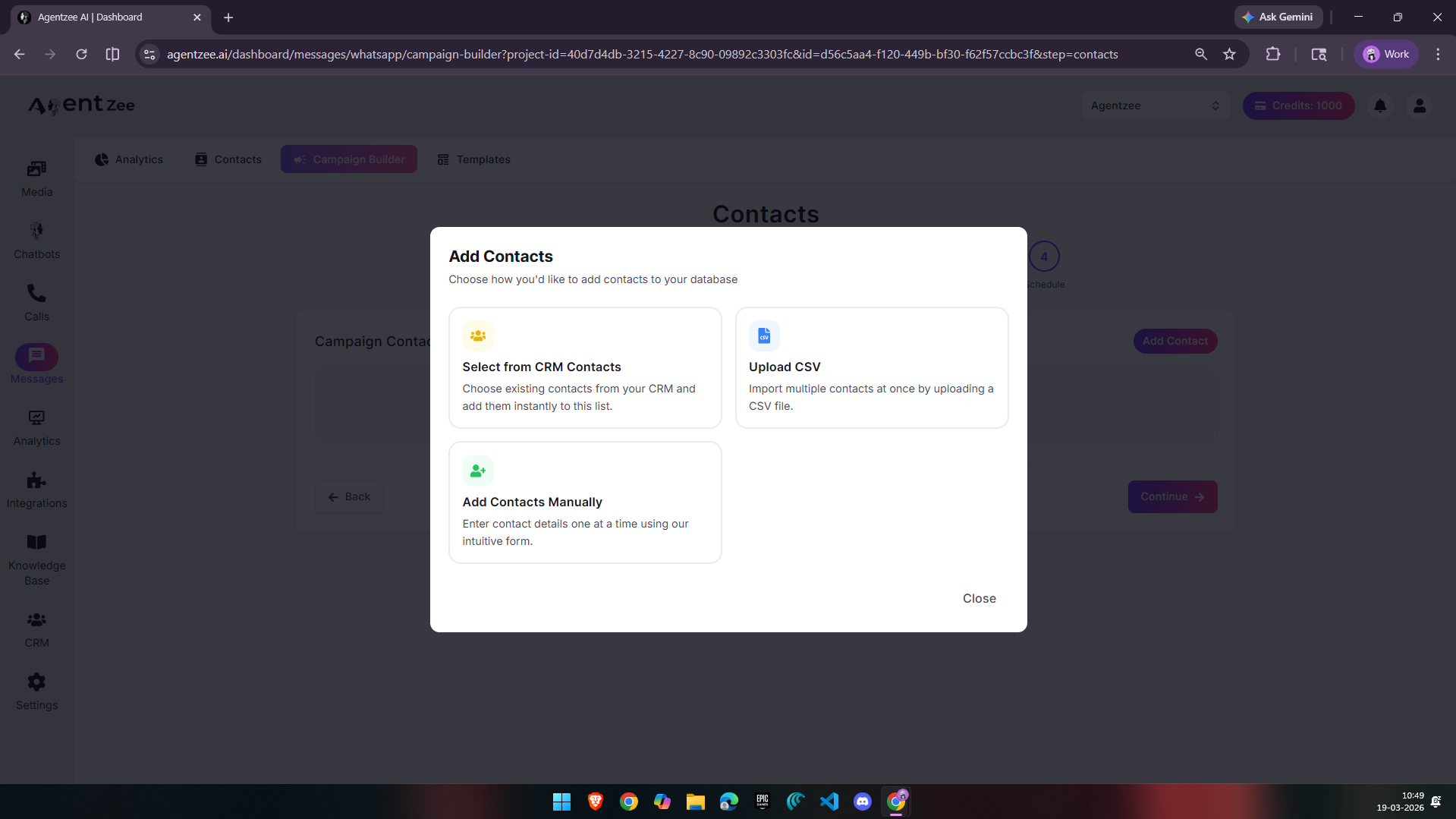
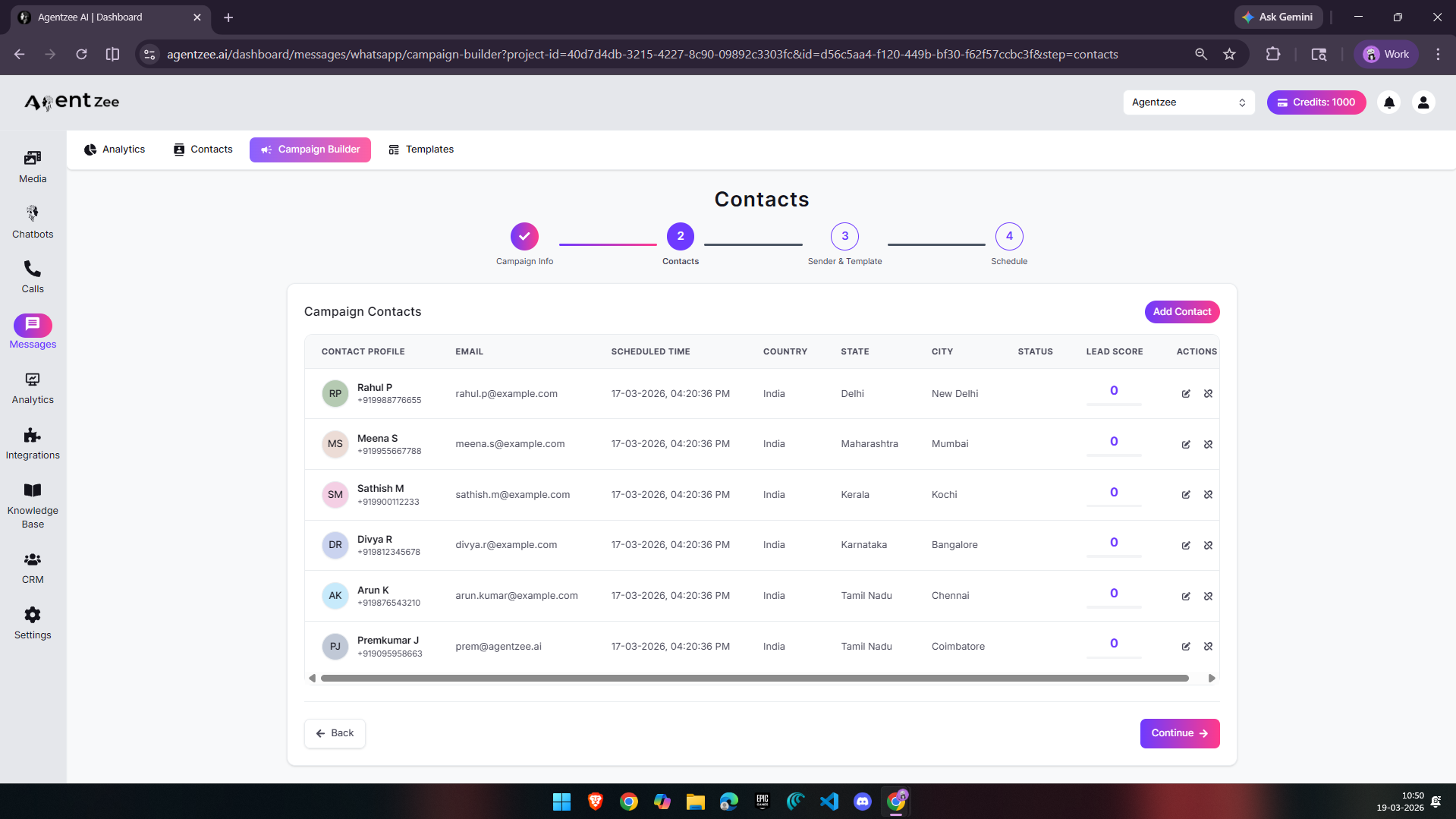
Step 2: Import contacts
This is how it looks when data is provided.
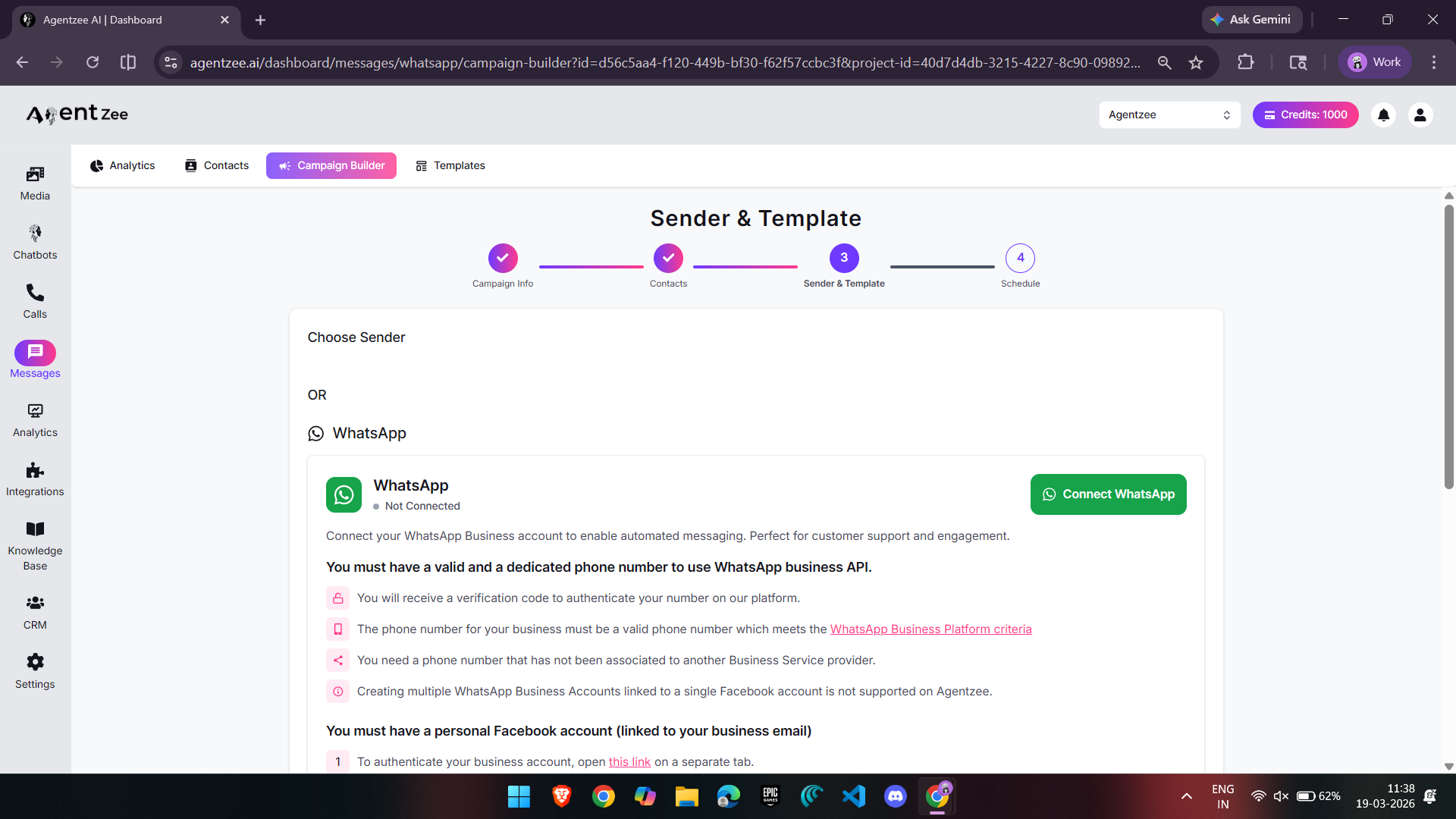
Step 3: OAuth
If your WhatsApp hasn’t been connected yet, connect it using OAuth, and only then will you be able to create a template.
Click on the “Connect” button
Click on the “Continue” button
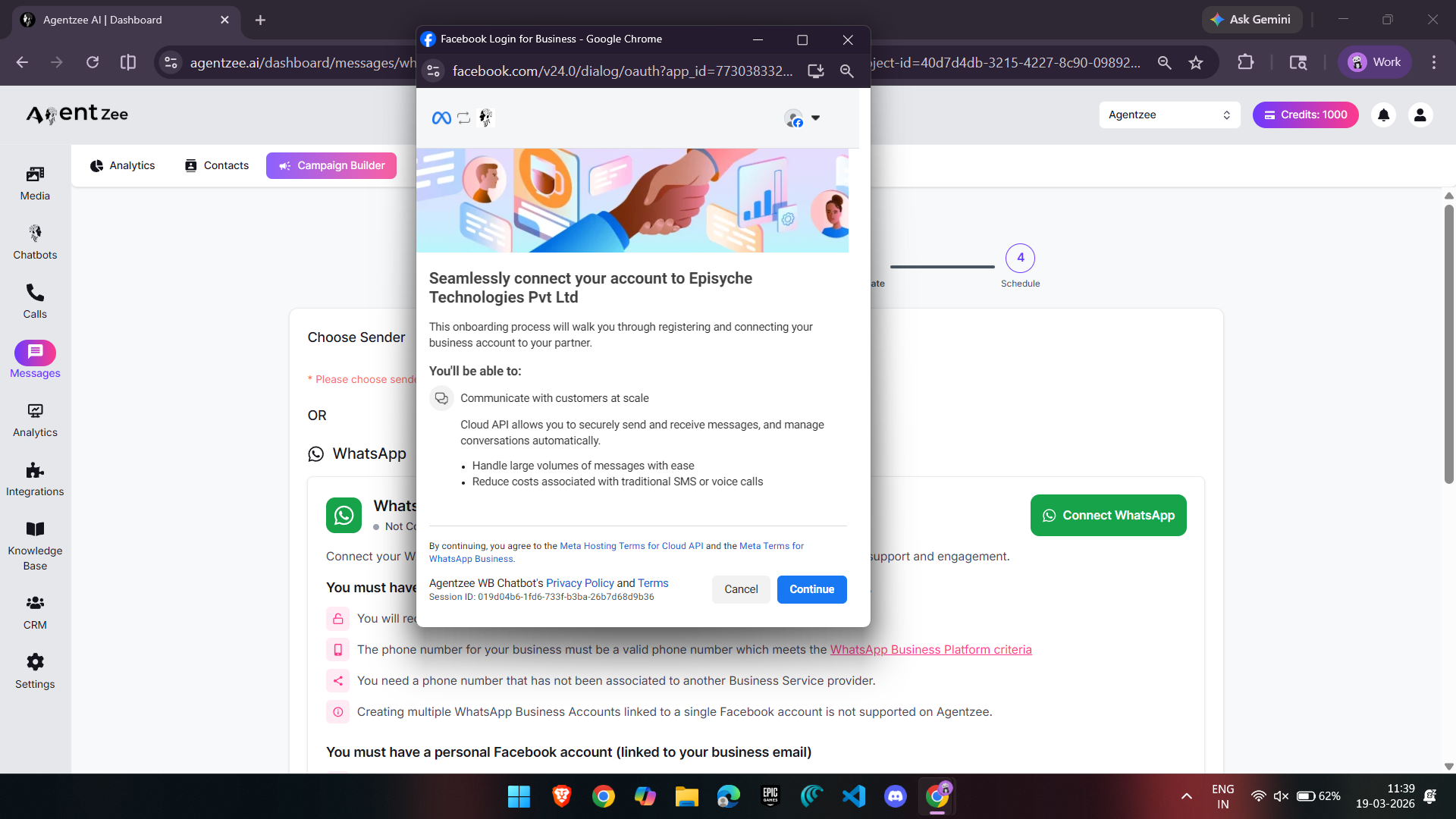
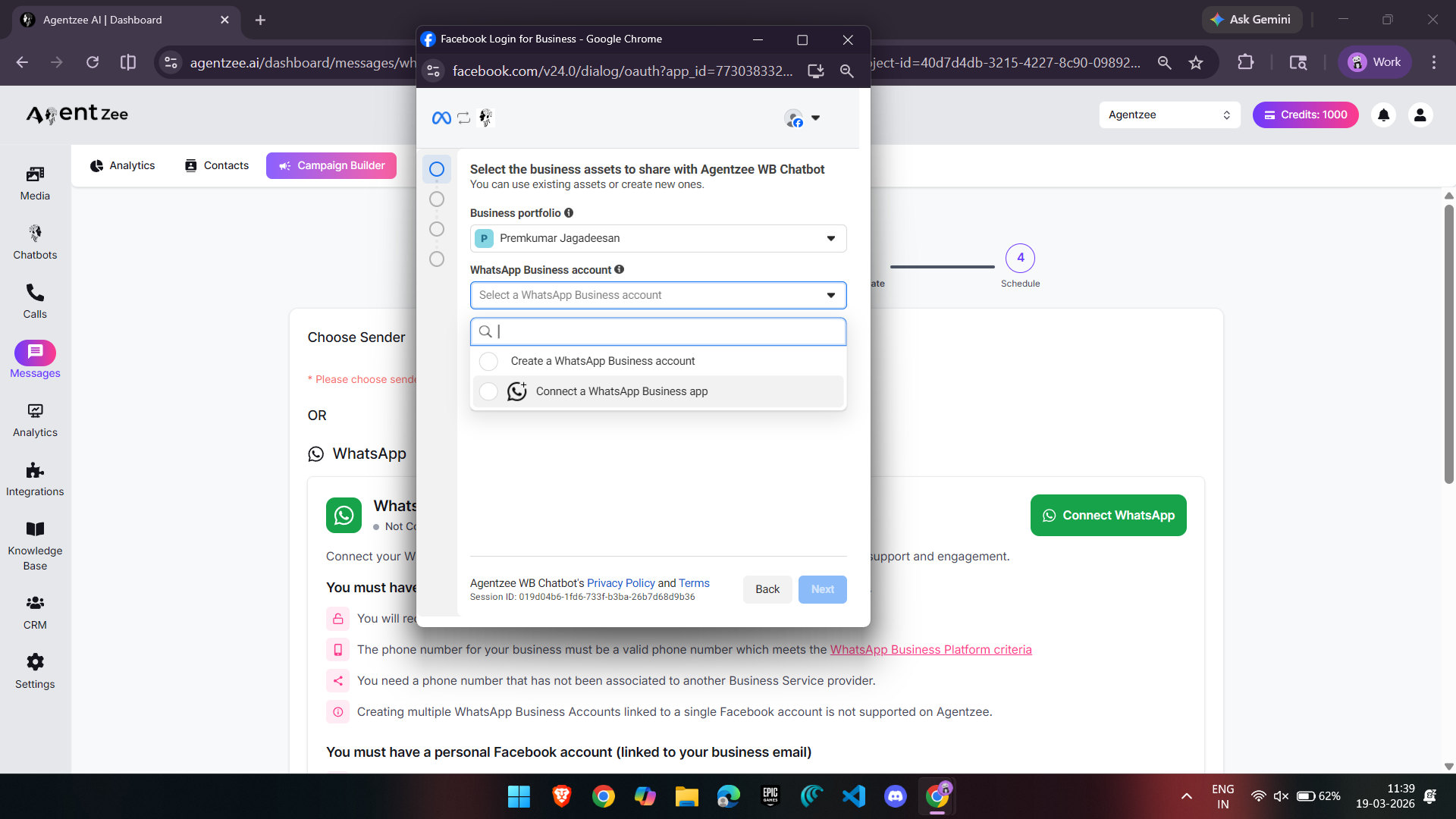
Select a “Business Portfolio” and choose the “Connect a WhatsApp Business App” option.
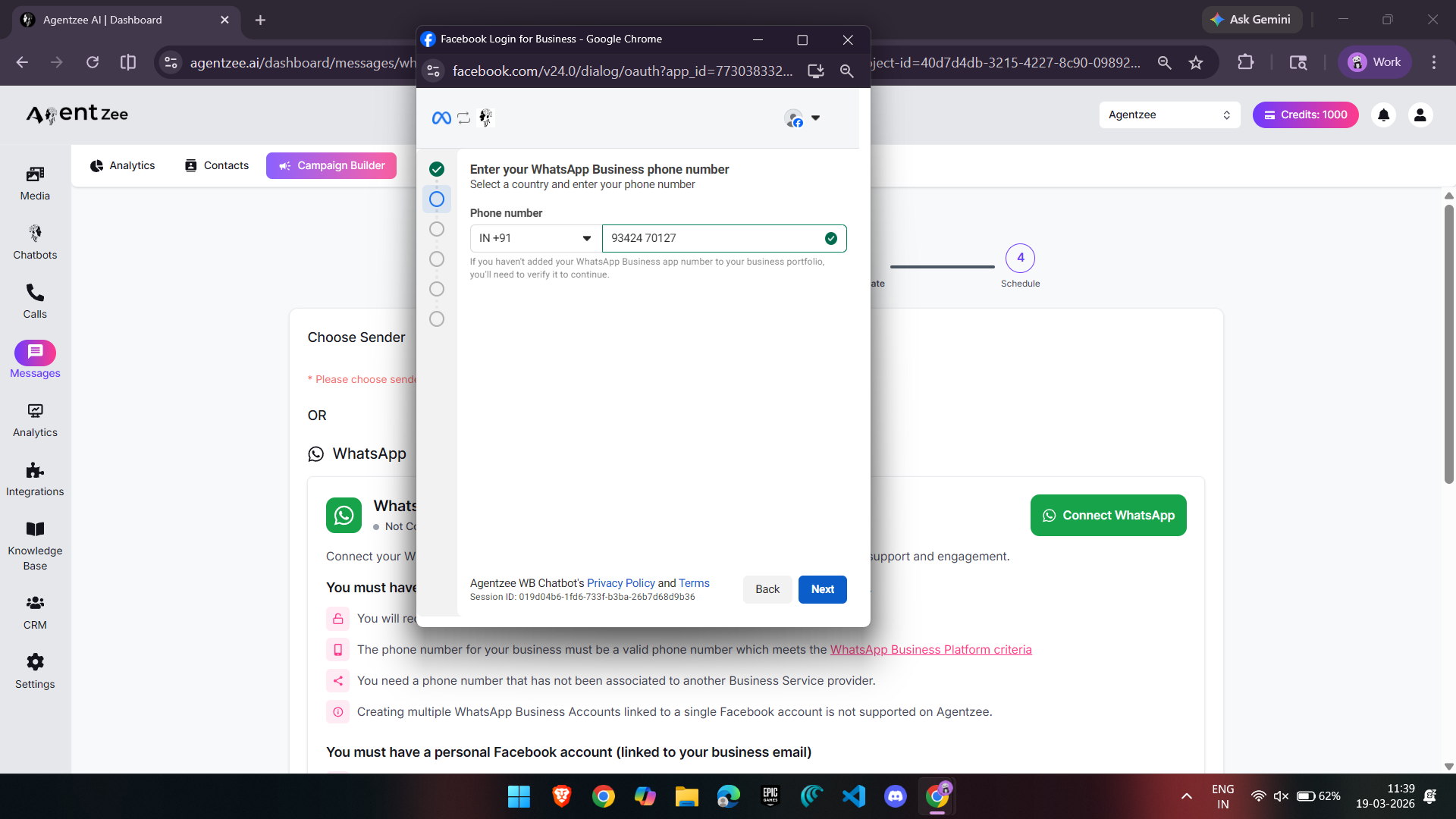
Provide your “Phone Number.”
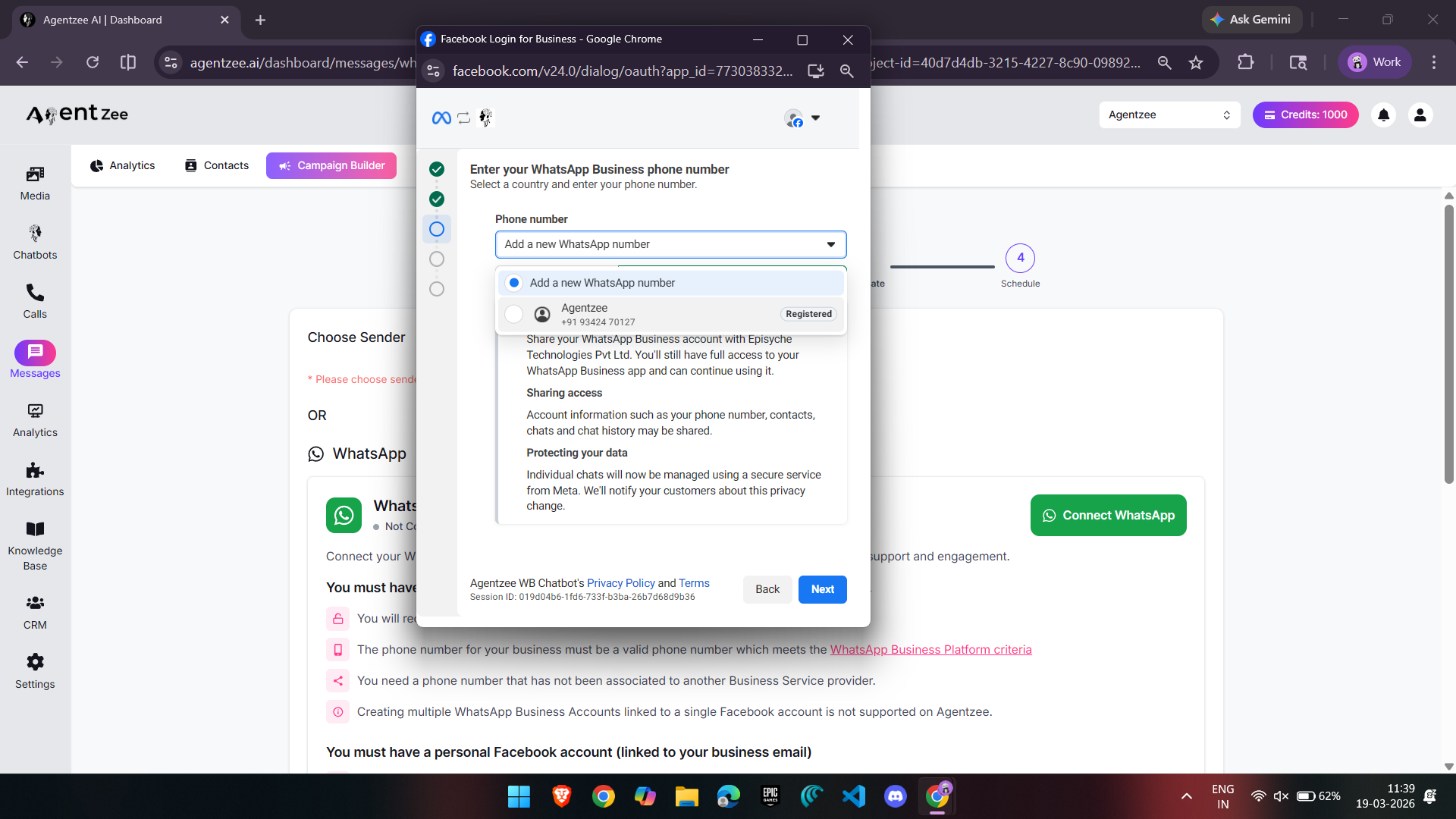
Choose the phone number you entered.
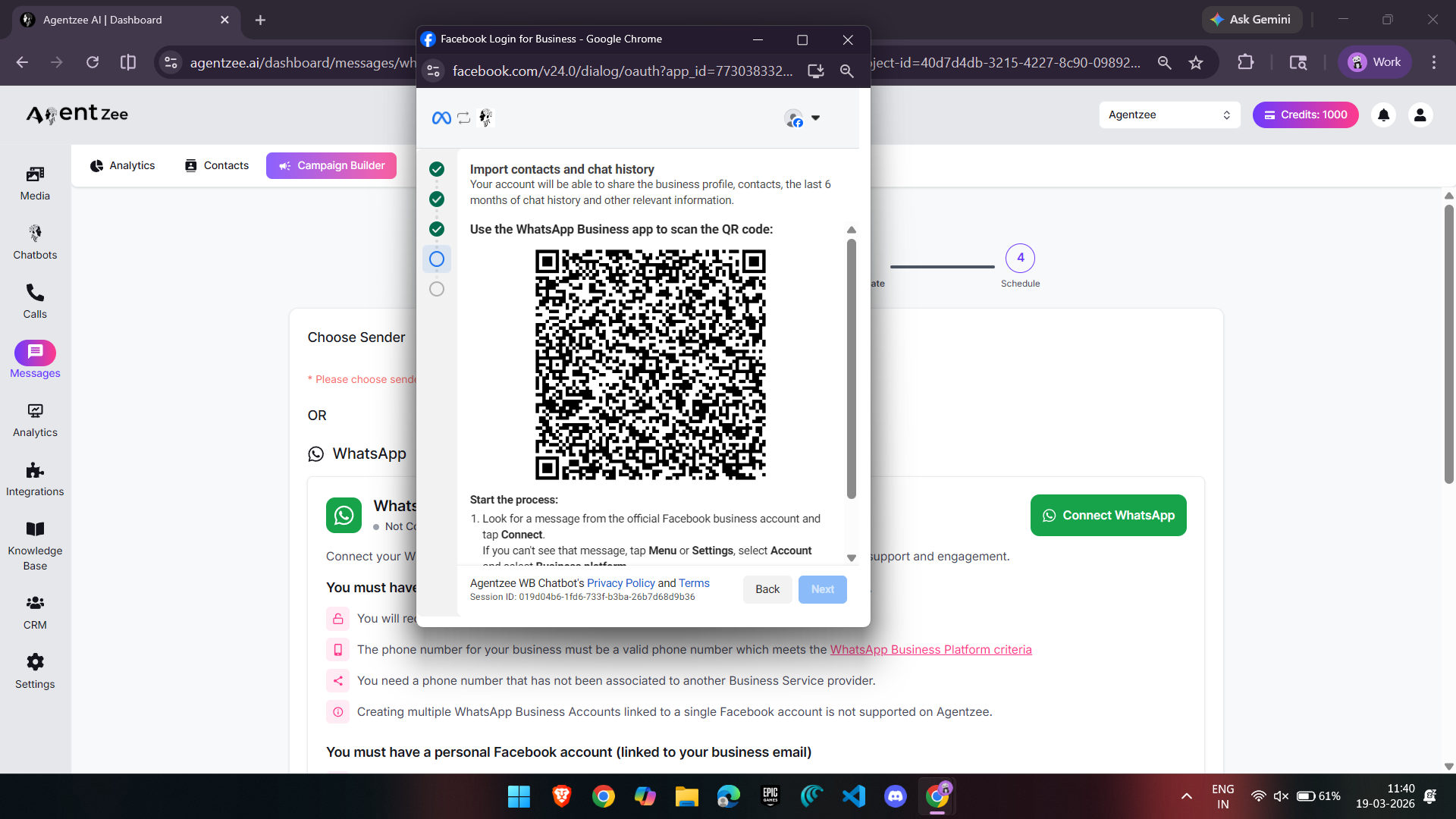
Open the message received and “Connect” by scanning this QR code.
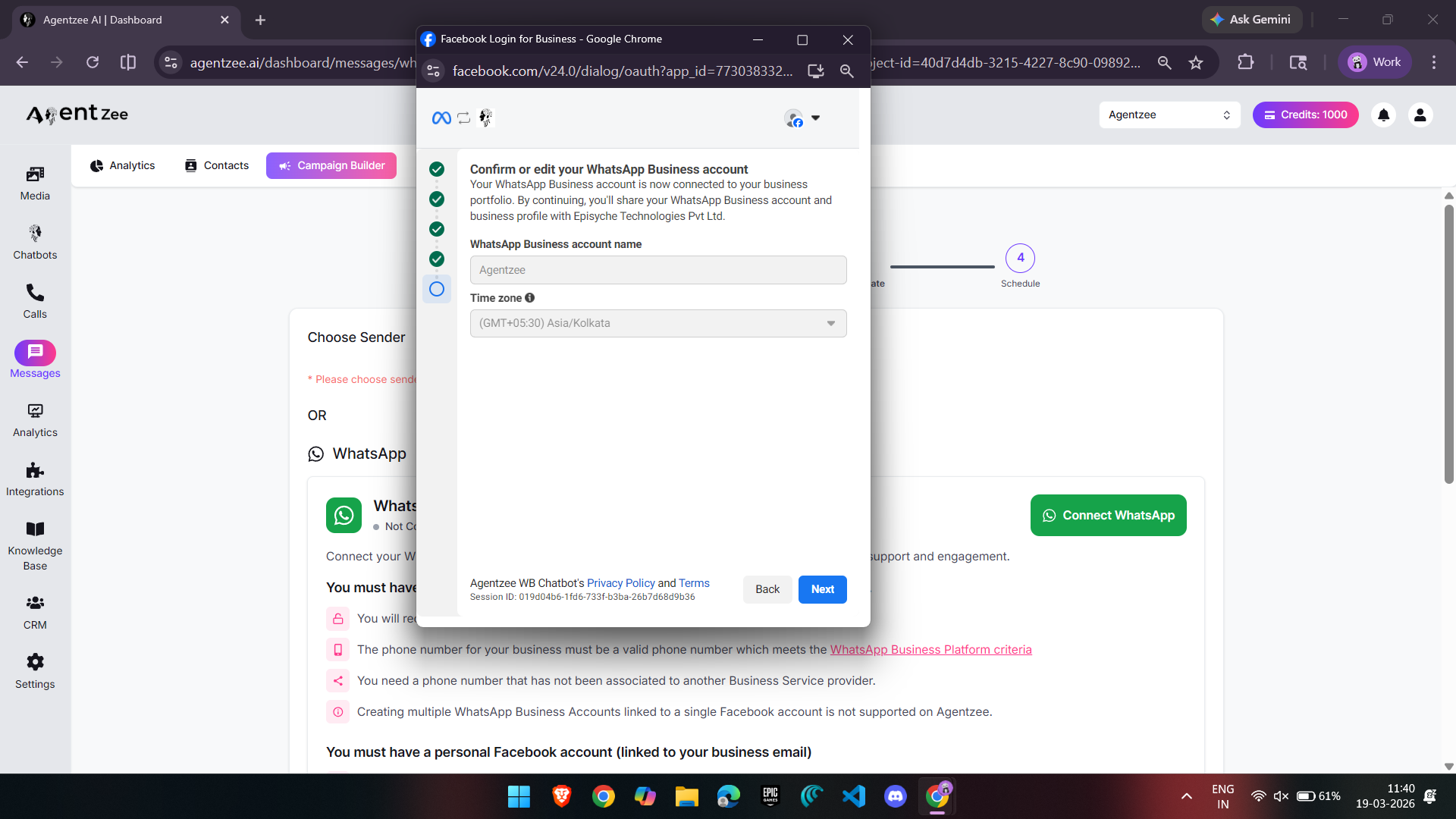
Verify your default time zones and proceed further.
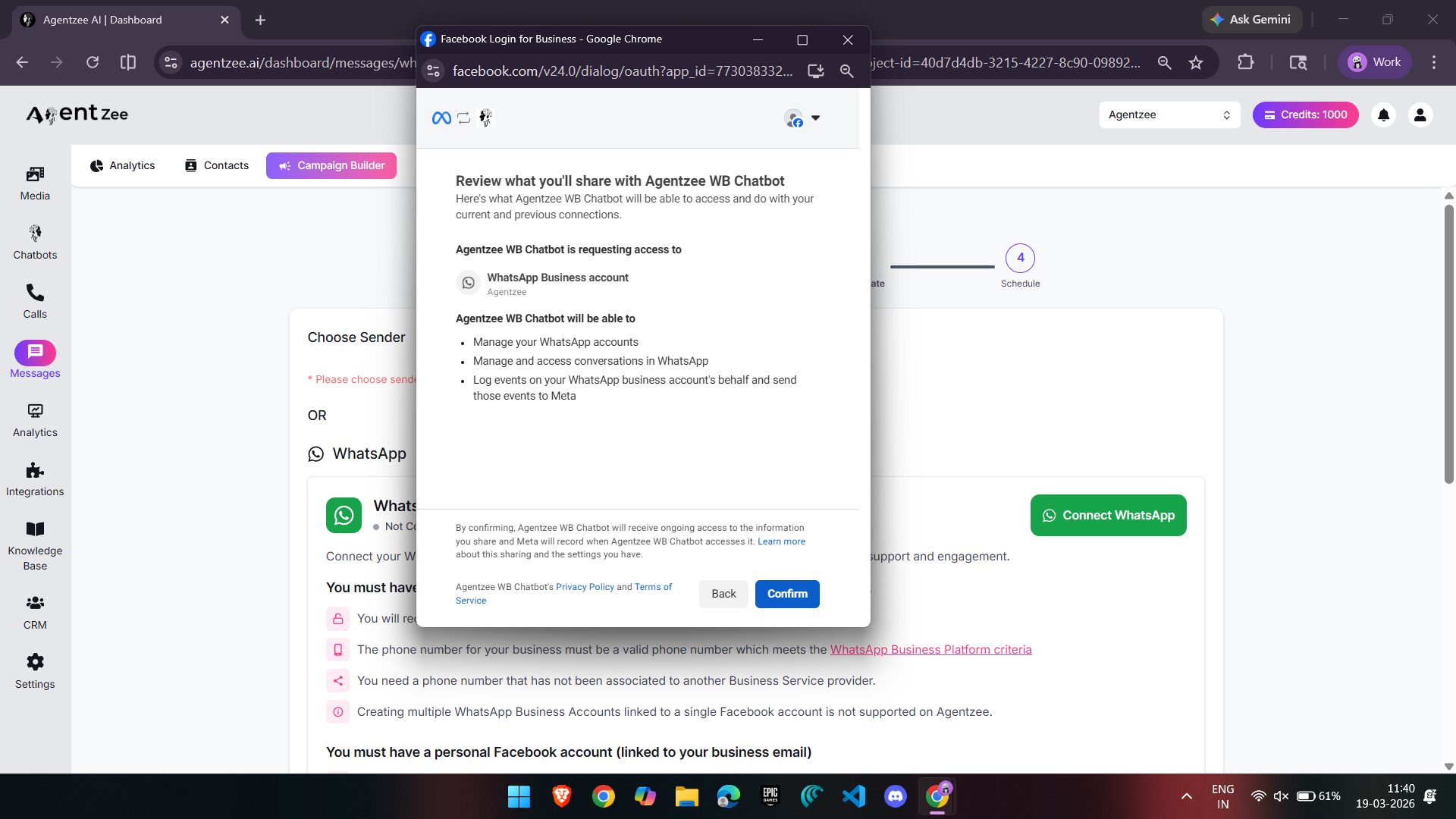
Review the process and “Confirm.”
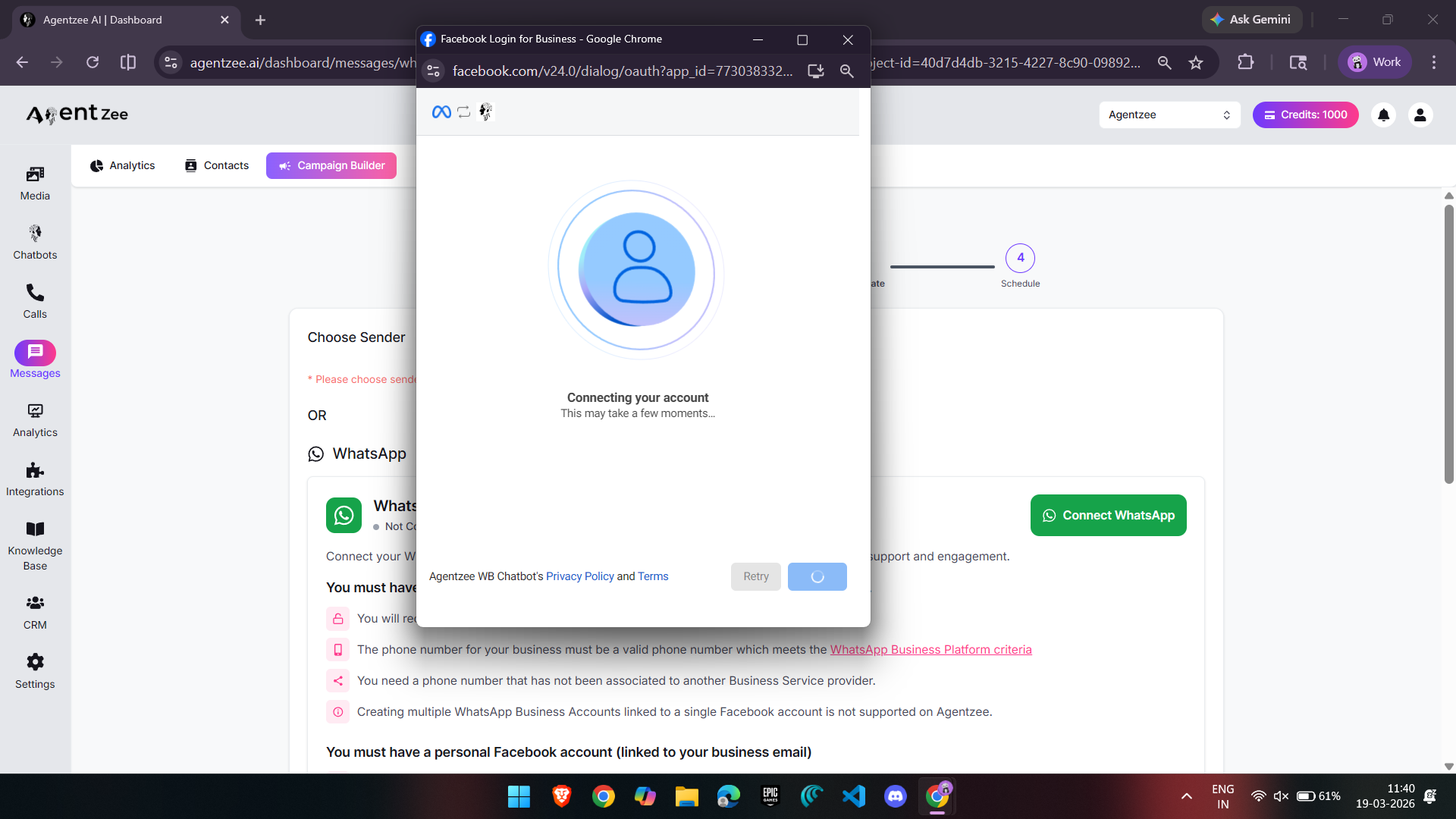
Finish “Connecting” your account.
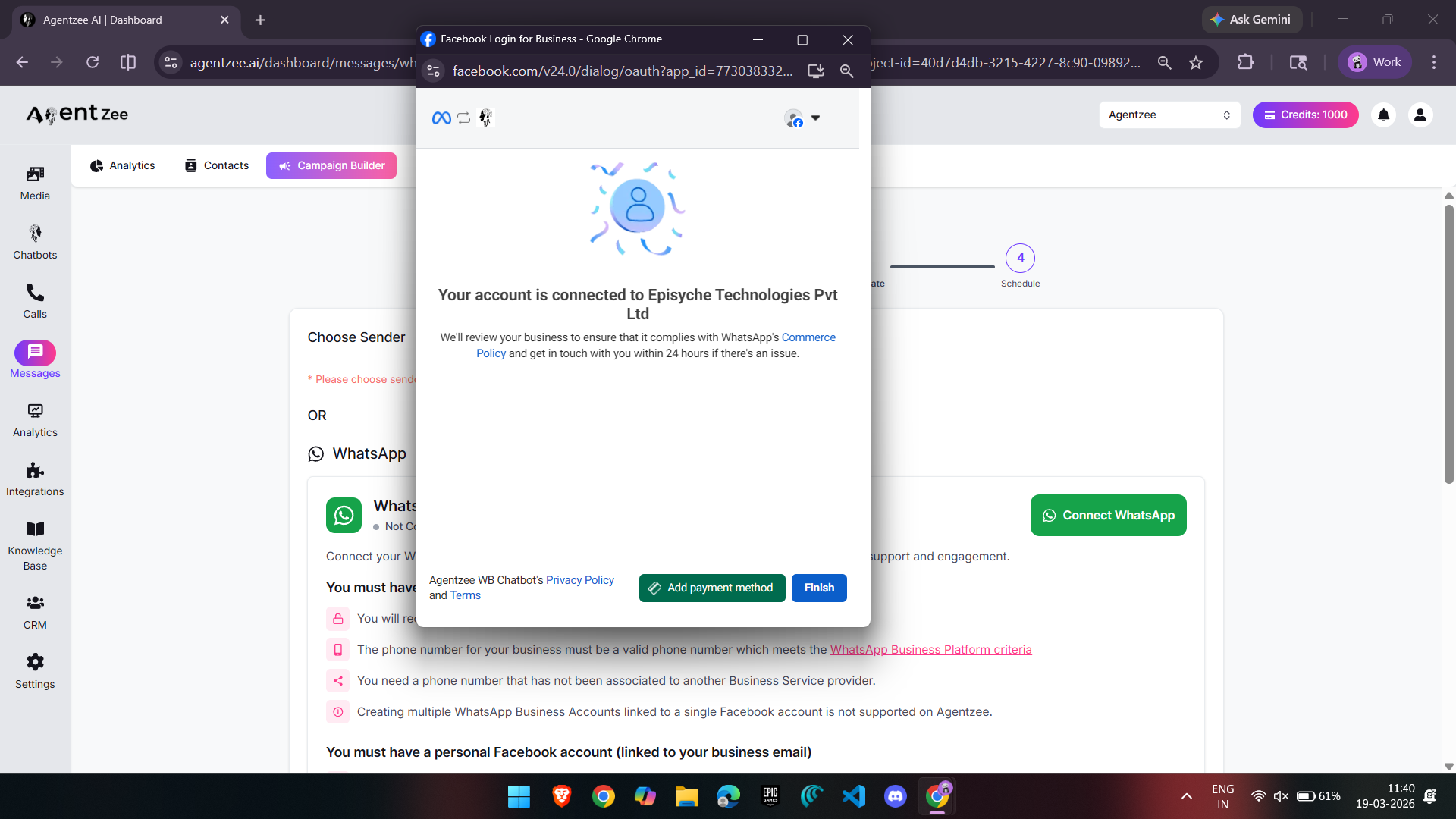
Once done, finish the setup.
Conclusion
A WhatsApp marketing campaign is very helpful in terms of marketing and running a campaign. With all the features and positives it brings, it has so many marketing advantages. After hearing all these, you somehow have to implement this, right?
So, let me provide you with an easier option, and that’s us: Agentzee. (Agentzee)
Here, you can explore how it works:
Agentzee WhatsApp AI chatbot