
The Google Analytics dashboard becomes a useful platform in today’s business environment to understand website performance, customer behaviour, and marketing strategies. In the dashboard, some critical metrics remain untouched. Actually, the data is there, but the problem is finding it in a dashboard.
Even when we try to ease this process using the API, they also give an error when we are using wrong or invalid metrics and dimensions in the query. A single mistake in metrics and dimension names makes an API error.
To tackle this, a Google Analytics AI agent was built on MCP (Model Context Protocol). Instead of tracking insights manually in the dashboard or writing a query for every insight, it simply gives you data from a question. This blog explains how it works.
The data is there. Finding it is the problem
Google Analytics provides more information about your website than other platforms do. Your default dashboard shows metrics that you know, like sessions, user count, and views, but it doesn’t explicitly show the crucial metrics like engagement rate by traffic, revenue by acquisition channel, and filter combinations that most of the business never touch.
These insights are more valuable for decision-making. But finding them inside the Google Analytics dashboard is not always straightforward. The data is present, but to get those, we have to navigate multiple steps or add that metric as a custom one in the dashboard.
For example, if you want to see the total revenue of all traffic sources data you have, you have to navigate. Reports → Lifecycle → Acquisition → Traffic acquisition → select custom dimensions → total revenue
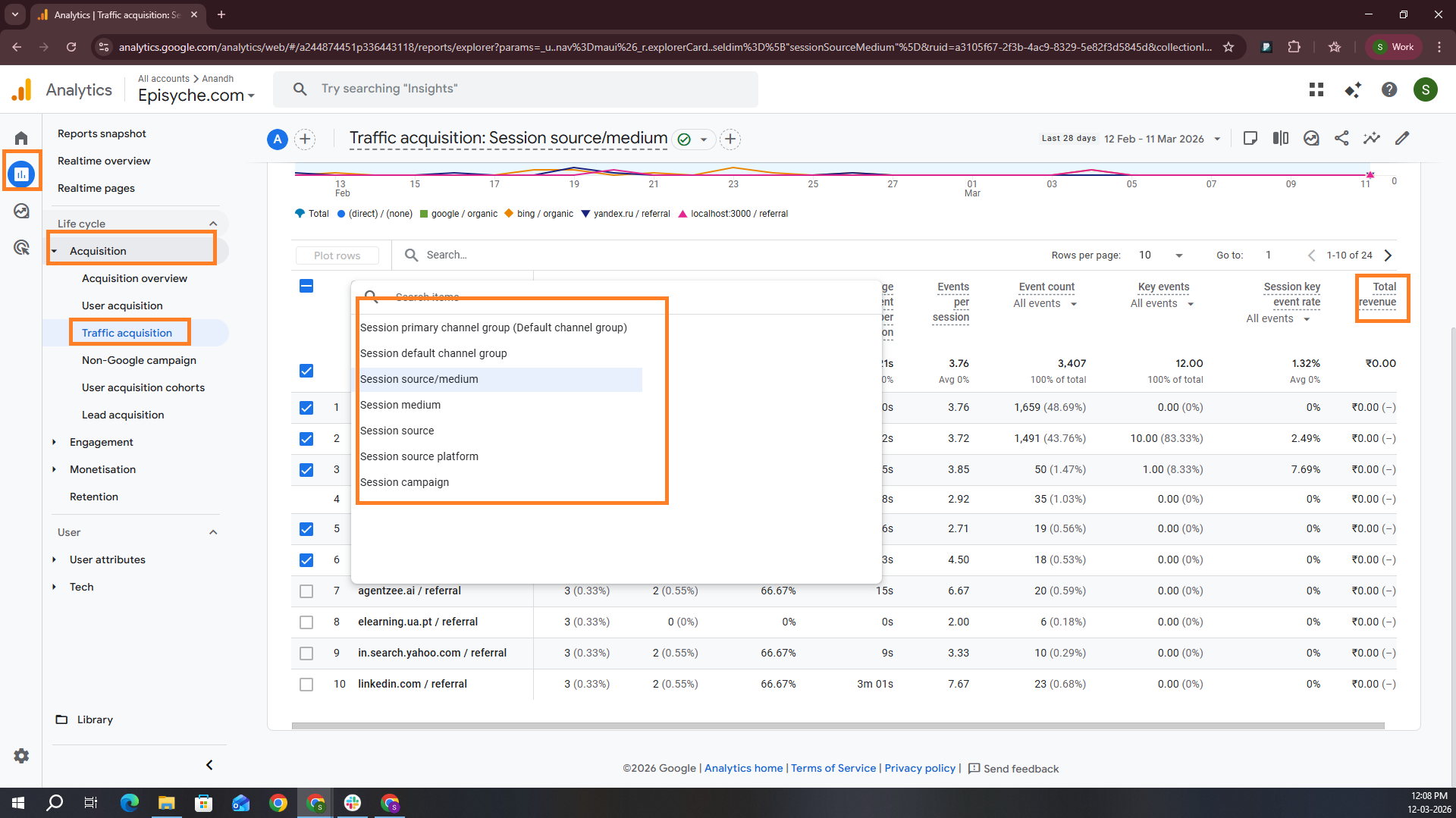
You should be aware of dimensions. You can use the custom tool to add metrics and dimensions you want.
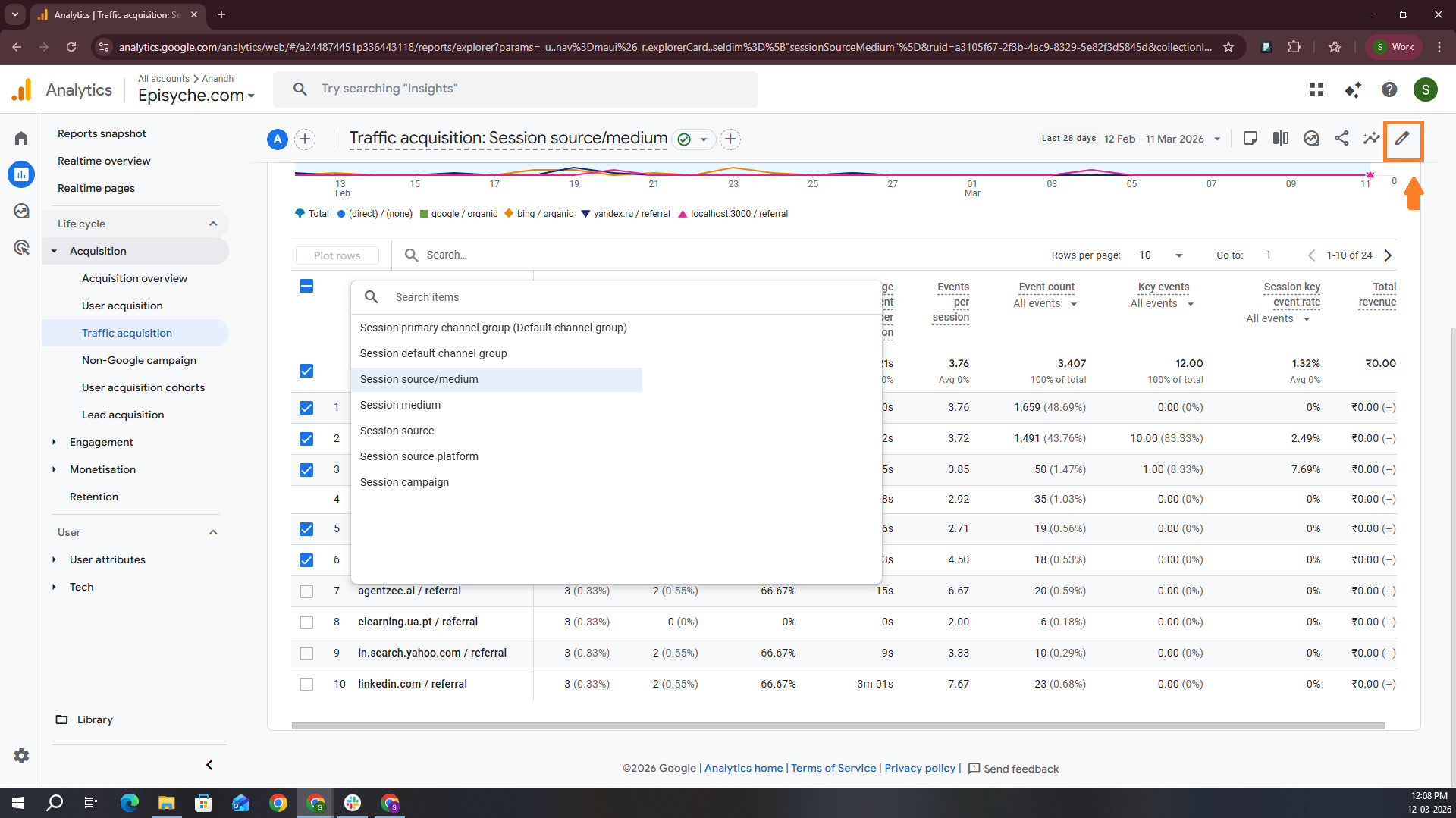
Step 1: In the top right corner, you can see the custom tool icon.
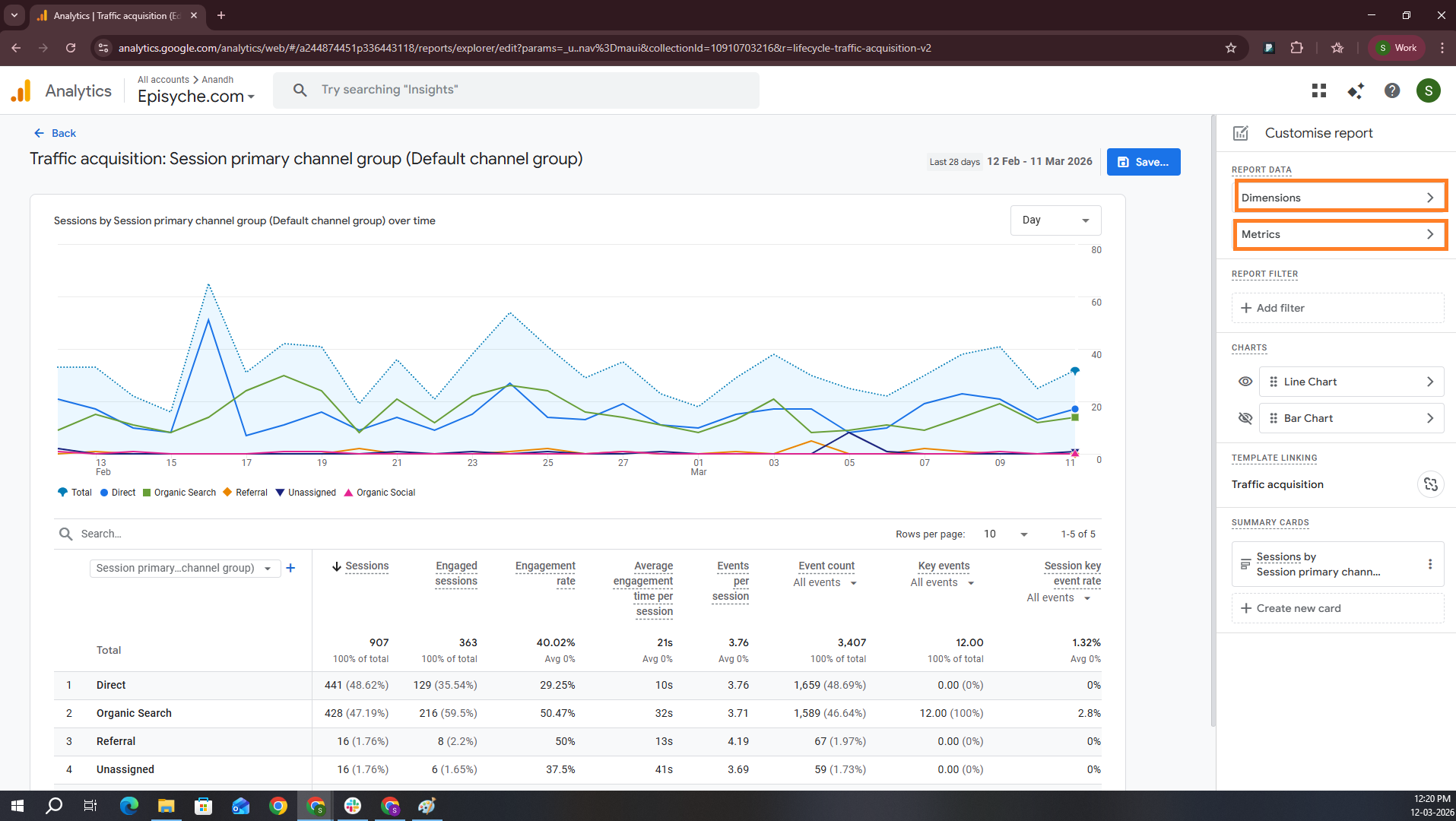
Step 2: You can add custom dimensions and metrics by clicking Metrics and Dimensions here.
Step 3: Add the metric or dimension you want; click ‘Apply’ and ‘Save.’
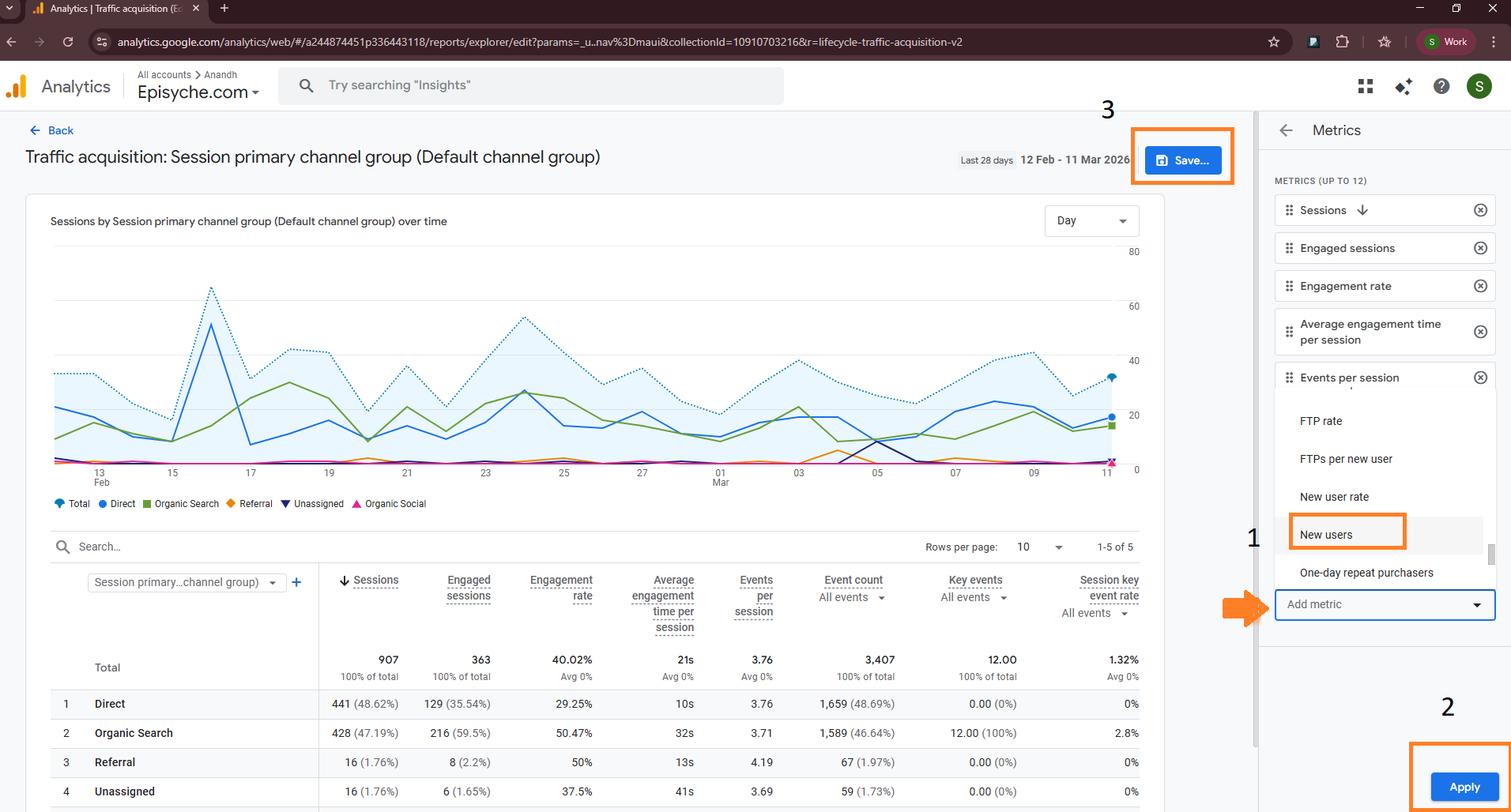
Step 4: Then you can see the metric on the dashboard
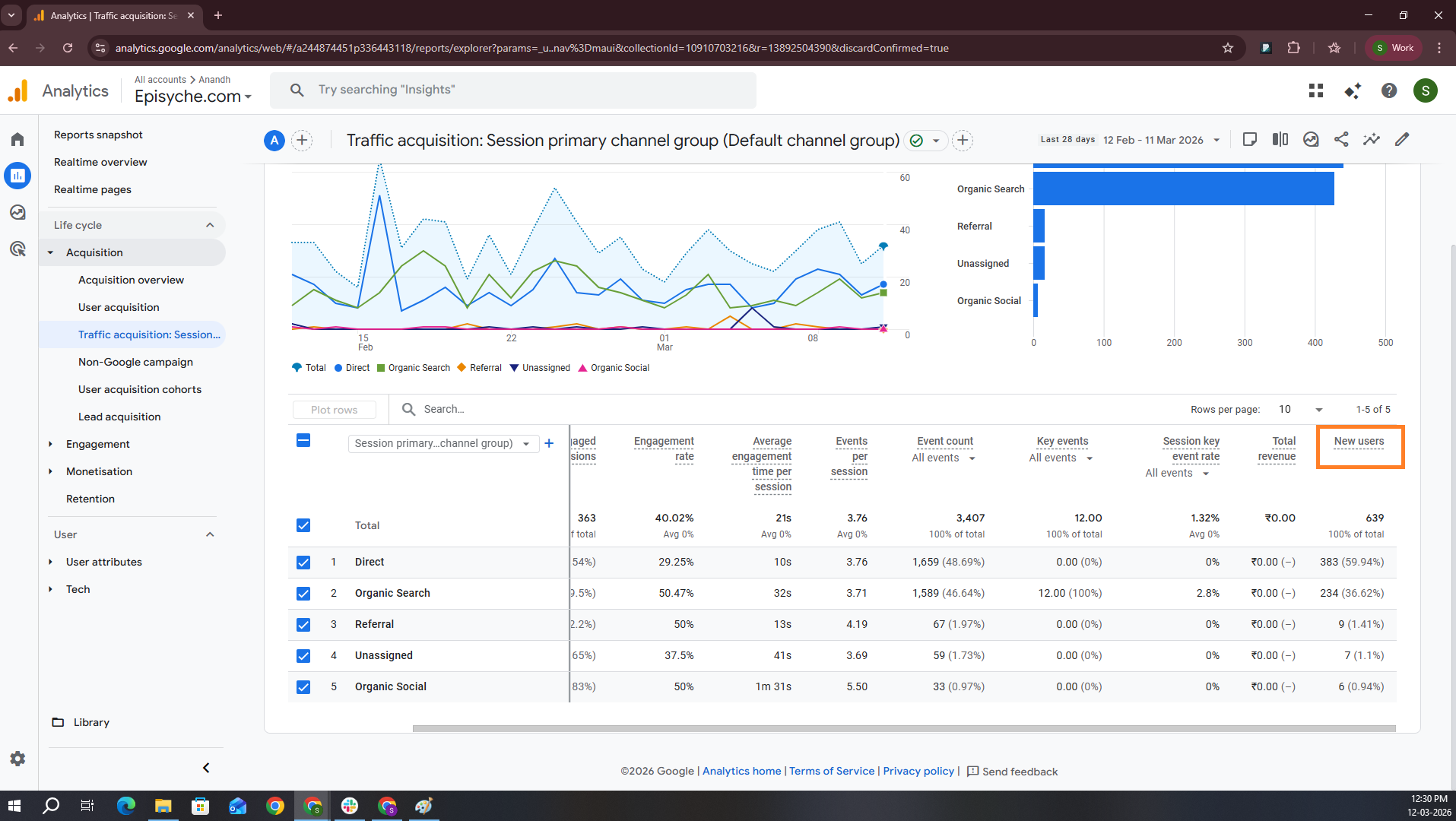
For initial business stakeholders, it becomes very complicated. And this process took more time.
In reality, the data we want exists, but it is simply hard to find quickly. But the Google Analytics AI agent will solve this issue.
Let’s see what happens if we use the API
Before knowing what an analytics AI agent is, we’ll see what the Google Analytics Data API is. To solve some limitations in the dashboard, we shift the way to pull the data through the API. These APIs give you full access to the business to pull the data that they want.
No need to navigate, click, or save. But there is an issue no one talks about.
Just refer to the blog to obtain an access token. How to access Google Analytics dashboard data via API with an access token.
Some issues we may face
1. The API requires exact metrics and dimension names
The GA4 API doesn’t understand plain English text. It requires a valid GA4 metric and dimension names. There are 200+ metrics and 150+ dimensions available in the official Google Analytics API Metrics and Dimension documentation https://developers.google.com/analytics/devguides/reporting/data/v1/api-schema
A single word mismatch causes an error. Like for views, there is a metric ‘screenPageViews’, for users, ‘activeUsers’.
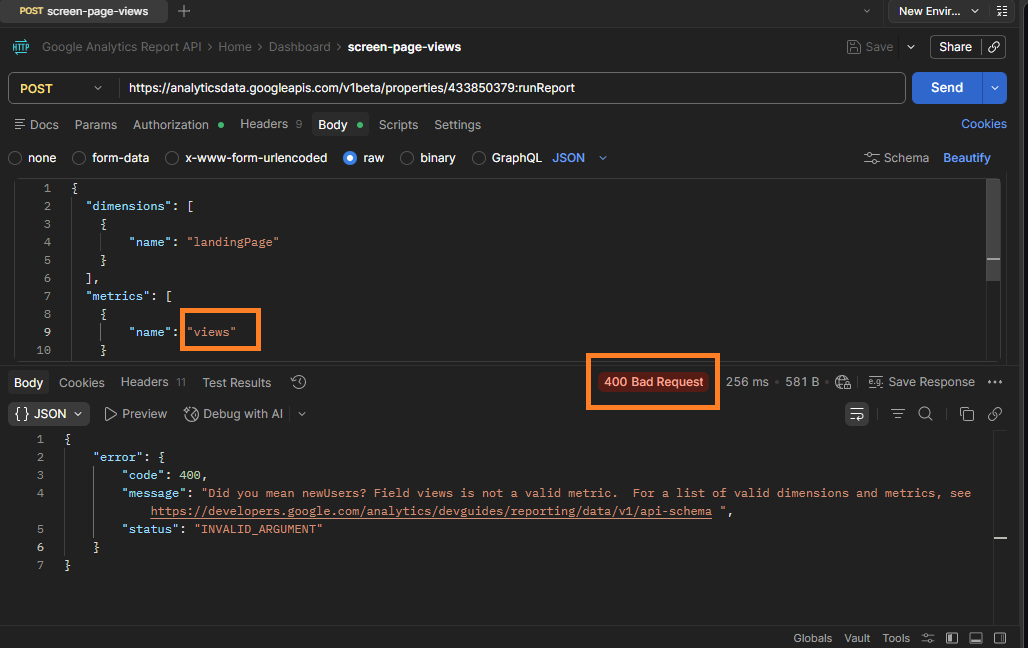
2. Can’t get some metrics directly
You can’t get some values directly; you need to manually calculate them. But in the UI, there will be a calculated value. If we use an API, then we have to calculate it using a formula.
For example, for calculating engaged sessions per active user, we have to use this formula
engagedSessionsPerUser = engagedSessions / activeUsers (a calculated value; GA4 has no metric with this name)Like this, some more metrics we need to calculate manually, such as engagedSessionsPerActiveSession, averageEngagementTimePerActiveUser, etc.
3. Wrong dimension combination
Combining wrong metrics and dimensions gives you an error. It will give you a small idea of how to fix it. In this, you have to find the right metrics and dimensions → build the API query → if wrong, hit an error → read official docs → debug metrics → repeat. But while you are using the Google Analytics AI agent you don’t need to worry about the metrics and dimensions.
How the Google Analytics AI agent works
Building the Google Analytics AI agent on the MCP framework will solve both problems. In MCP, we define tools that are used to fetch data. And that allows an AI agent to directly connect with your GA4 property. To pull the data, you need to set up OAuth and obtain an access token for your account from which you are going to pull data.
The agent simply reads the user question and identifies what data you are trying to get, and forms appropriate metrics and dimensions. Then the agent calls the relevant MCP tool and makes the arguments itself. It will return the response as per the output format mentioned or respond as plain text.
What is MCP?
MCP (Model Context Protocol) is an open-source standard that allows AI models to connect seamlessly with external systems, tools, software systems, and data sources in a structured way. APIs allow applications to talk to each other, while MCP is designed for LLMs to talk to tools.
Here, MCP enables our Google Analytics AI agent to:
Understand the user question
Select which tool gives the answer
Form tool arguments like valid metrics and dimensions
Fetch data through an API.
Format the response as per our needs.
How to implement Google Analytics AI Agent
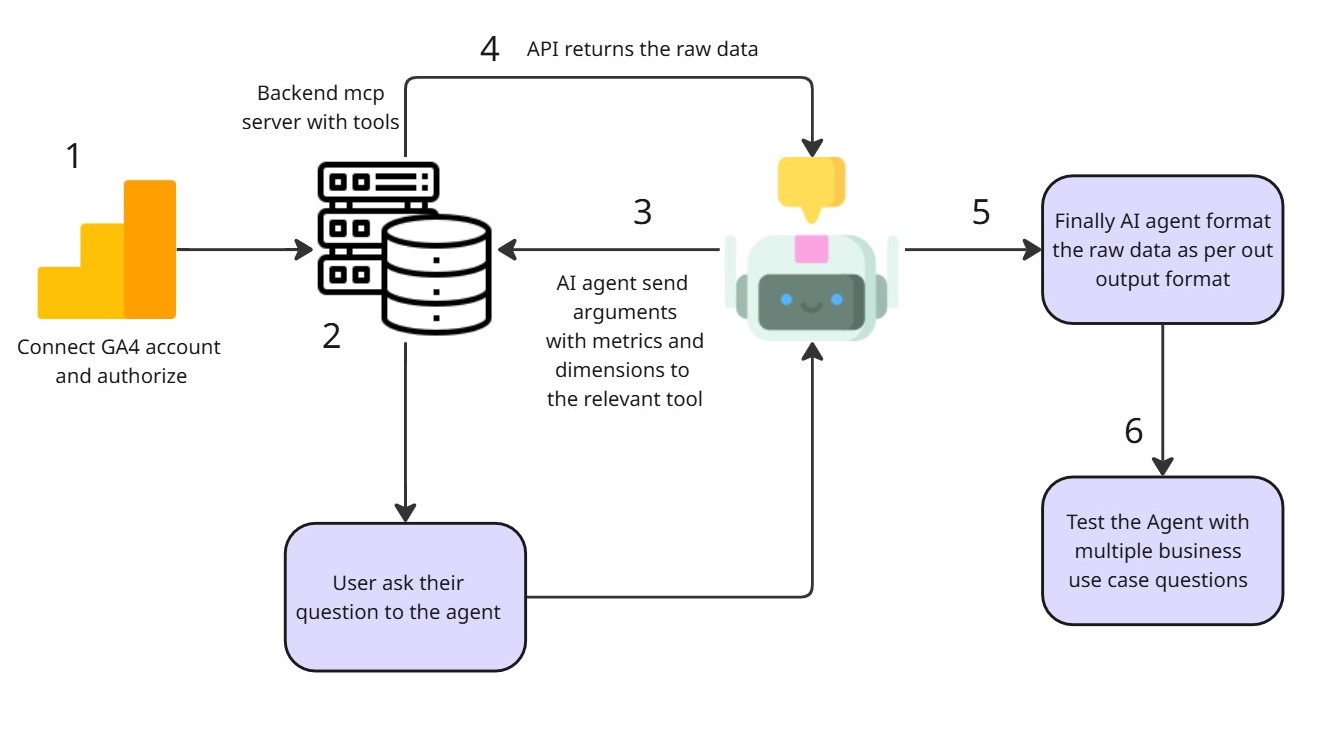
Step 1: Connect your GA4 account via Data API in Google Cloud Console
Before constructing a Google Analytics AI agent system, we need to lay a foundation. Firstly, your agent needs authorized access to your account. You need to create a service account and add the service email to your analytics account as a user. Refer to this in the blog mentioned above. And save the credentials you got for later access.
GA4 Data API uses these credentials to pull the data.
Note: Just give read-only access to the scope. The agent just read the data; there is no need to write anything on the dashboard. This may cause a permission problem later.
Step 2: Set up the MCP server tools
The MCP server is the layer of a system that consists of MCP tools with API endpoints. The agent calls the relevant tool with the proper argument and finally returns the result. Our platform, Agentzee, provides pre-built MCP integrations. You just need to connect your GA4 account—no code, no pressure.
Note: This server needs the property ID, access token, and the credential file you created in Google Cloud. Before the live test, check all the connections, like permissions and scopes.
Step 3: Let the agent handle your question
This step makes the Google Analytics AI agent from standard API integration. In standard API calls, users need to identify the valid metrics and dimensions. But in this, the biggest weight is taken over by the agent. It chooses the metrics and dimensions based on the MCP tool description and the system rules we gave.
At the same time, it verifies that the metrics and dimensions are valid. For example, to get an engaged session per active user, the user needs to give ‘engagedSessions’ and ‘activeUsers.’ And that’s not final. They need to calculate the value manually. Based on your question, the agent gets raw data through the API and calculates it for your report.
Step 4: Fallback or reattempt logics
If your agent failed on the first try, that does not mean there is no data. There may be some connection issues, metric issues, or dimension issues. So start writing fallback or re-attempt logic to ensure data arrives.
Not every metric and dimension combination will work. Sometimes this makes errors. If you write a reattempt logic at least 3 times, the agent tries again with the new pair of relevant metrics and dimensions.
Step 5: Format the output as needed.
The standard API will give you the response in raw JSON. But this data is not convenient for the team members to analyse the status. But the AI agent transforms the raw JSON from the data API into a human-readable format. You can specify the output format in the system rules of an agent. Usually, it gives a response in a human-readable text format. You can check Agentzee to see more templates. The Google Analytics AI agent tells the answers to all Google Analytics-related questions.
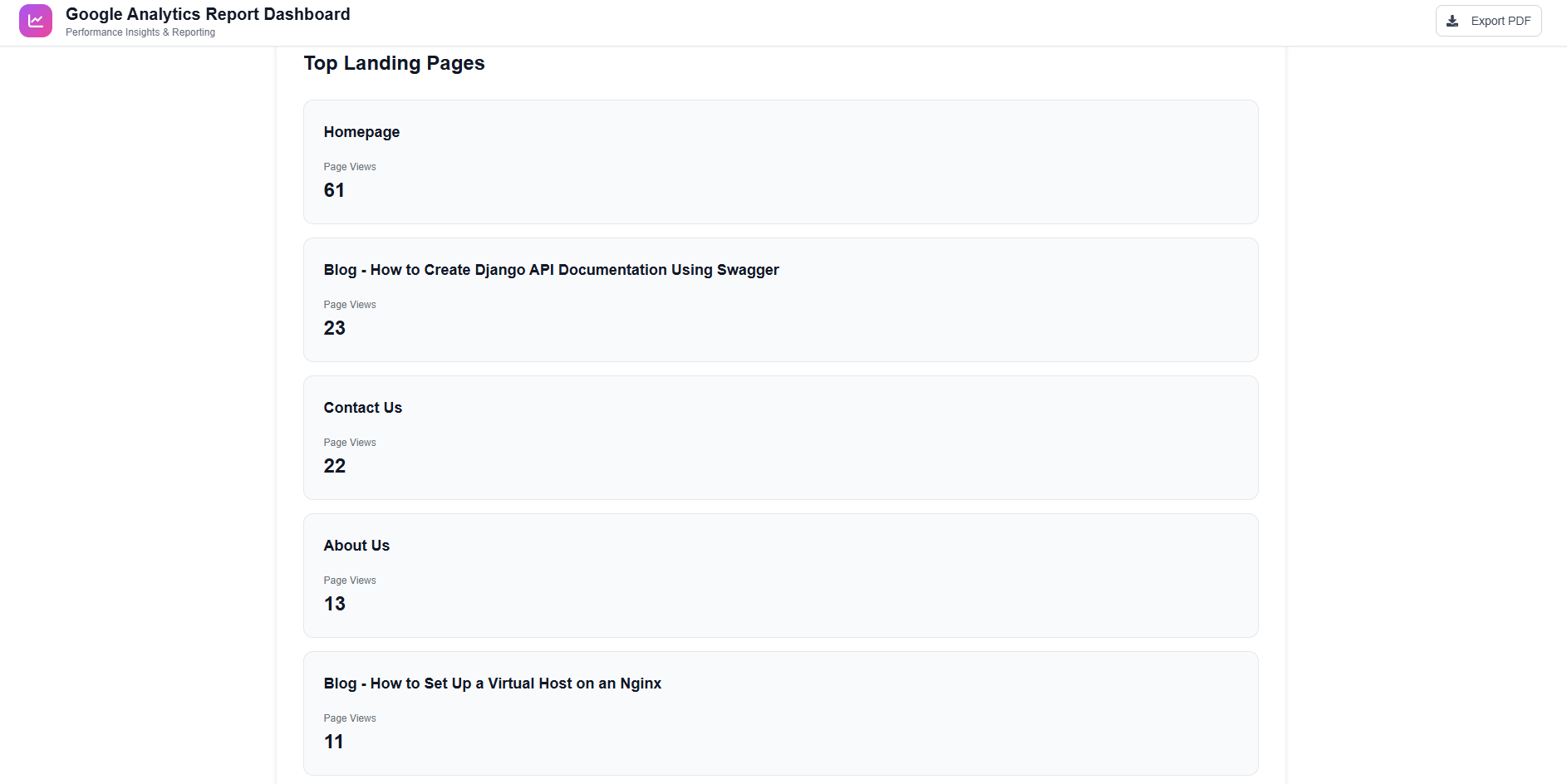
If I ask the question to the Google Analytics AI agent, “What are the top 5 landing pages that got more views?”, it gives the top pages data.
Step 6: Test the real business use case question before going live.
Before launching the Google Analytics AI agent system to production mode, just test this with multiple questions. Collect some real-world business use case questions and ask the agent. The important thing is that you have to check the actual data in your dashboard for the first time for correctness.
Must measure these things:
Success rate: Compare the agent’s success and failure rate, like how often it gives valid data vs. an error.
Time range: Measure the time it takes for an API call and give the final result
Adoption rate: If it is usable by all, like the non-analyst teams, it’s also usable.
Fallback rate: How often does it need a fallback?
Conclusion
If you ask, “Can Google Analytics AI agent pull all data from GA4?” genuinely no. Because to fetch some complex data combinations, we actually need a human analyst, such as for multi-touch attributions, cross-device tracking, and custom funnel analysis. Our primary goal is not to replace the expert analyst. We aim to speed up the delivery of 80% of everyday questions that can be asked by anyone, not just an analyst who knows what “sessionDefaultChannelGroup” means.
It handles most other everyday queries well. Agentzee has this feature. You don’t need to write code; simply connect. your GA4, and then you can use a report template as per your needs. This will save hours every week.
Take a tour of our analytics agent to generate multiple reports as needed