
Using the Instagram tool to publish Reels, carousels, and Stories manually can take more than 10 hours every week. It becomes stressful and difficult to handle the situation, making it challenging to stay consistent so as to make posting everything easier and automate Instagram posts through a simple workflow.
The problem is manually publishing the content after overnight.
Consider a simple case: a small business owner or creator who takes care of the daily work alongside handling it while also running a content creator, content writer, editing videos, and working overtime at night. After handling all responsibilities and everything, the team members still need to spend their time publishing the content one by one, so now they focus on writing captions, adding hashtags, and sharing content at the right time.
Over the day, they miss posting content, engagement drops, and growth slows down.
Sometimes they publish in the morning when hardly anyone is online. The video gets very few views, likes, or comments. But they know that after six o’clock, when people complete work and start scrolling, mobile usage time engagement is much higher.
That’s why users or businesses need a secure, protected way to automate posting without worrying about account bans or breaking Instagram’s rules. Here is a major thing: if your image, video, or caption contains anything that goes against Instagram’s rules, it will not be allowed to be published on Instagram. You may get an error report saying the content cannot be published.
This is actually a positive way to make an effort. It means the API follows Instagram’s official policies and helps protect your account from offenses. Rather than risking a ban, you get clear feedback and can fix the issue before posting.
How to Automate Instagram Posts with the Graph API.
How to publish single images, videos, reels (single media posts), or posts holding multiple photos and videos on an Instagram business profile. You don’t need to post everything manually. You can publish your content in just a few minutes.
I’ve used this method for over 50 posts without any problems or account issues. It’s safe, simple, and saves a lot of time every week.

For Instagram post automation, Create has 2 steps: post creation using the Instagram Graph API.
Telling about automated Instagram post creation:
To achieve automated Instagram post creation through the 2 steps, first create the post creation-respected endpoint using the image path, caption (optional), and access token. Once the post creation is successfully done, retrieve and store the box creation ID. As this ID will be required in the next step. After getting the box creation ID, for the second step, publish the post creation using the box creation ID. Finally, publish the post after you get the published ID. Once the processes are completed, open Instagram and check your Instagram page if it has been successfully posted.
For your clarification, I have written and attached the cURL code along with the image reference below. After reviewing the lines I have added.
Endpoints:
`/<Instagram_id>/media` — Create a post and create and upload the post.
`/<Instagram_id>/media_publish` — Publish the uploaded post using their post creation ID.
Note: * /<instagram_id>/media endpoint. Reels and Stories are supported by setting the media_type field, as shown below.
Prerequisites
An Instagram business account linked with a page that requires Page Publishing Authorization (PPA) cannot be published until Page Publishing Authorization has been completed.
It’s possible that creating a Facebook Meta app only works for a business account page. An app user may be able to perform a job on a page that initially does not require page publishing authorization but later requires it. In this story, the app user would not be able to publish content to their Instagram business account until completing PPA. Since there’s no way for you to determine if an app user’s page requires page publishing authorization, we recommend that you advise app users to preemptively complete page publishing authorization.
You will need to know the following things:
Access Tokens: Facebook page access token
Host URL: graph.facebook.com
Login Type: Business login for Facebook
Premission: instagram_basic, instagram_content_publish, pages_read_engagement
Step 1: The first step is to create a post creation ID.
It must have a post-creation. To create the post, upload a post file as a string path and send a POST request to the /<instagram_id>/media endpoint with the following:
Endpoint for Post Creation:
https://graph.<host_url>.com/v23.0/<instagram_user_id>/mediaParameters
access_token: Set your app page user’s access token.
image_url or video_url: Set a publicly accessible URL for the image or video. Meta fetches the file from this URL, so it cannot be a local path.
caption: (optional) If you have text or a caption set in this section, also add hashtags like this: “#Agentzee.”
media_type: For a Reel (including any video post), set it to REELS. For a Story, set it to STORIES. Leave it out for a single image.
is_carousel_item: If the post will be part of a carousel post, set it to true.
Visit the Meta Developer Account for additional optional parameters.
Example Request:
curl --location 'https://graph.<host_url>.com/v23.0/<instagram_user_id>/media' \
--form 'image_url="<image_path>"' \
--form 'caption="<caption> or <hashtags>"' \
--form 'access_token="<instagram_access_token>"'
On success, your app receives a JSON response with the Instagram Post Creation ID.
{
  "id": "<post_creation_id>"
}
Sample Request and Response:
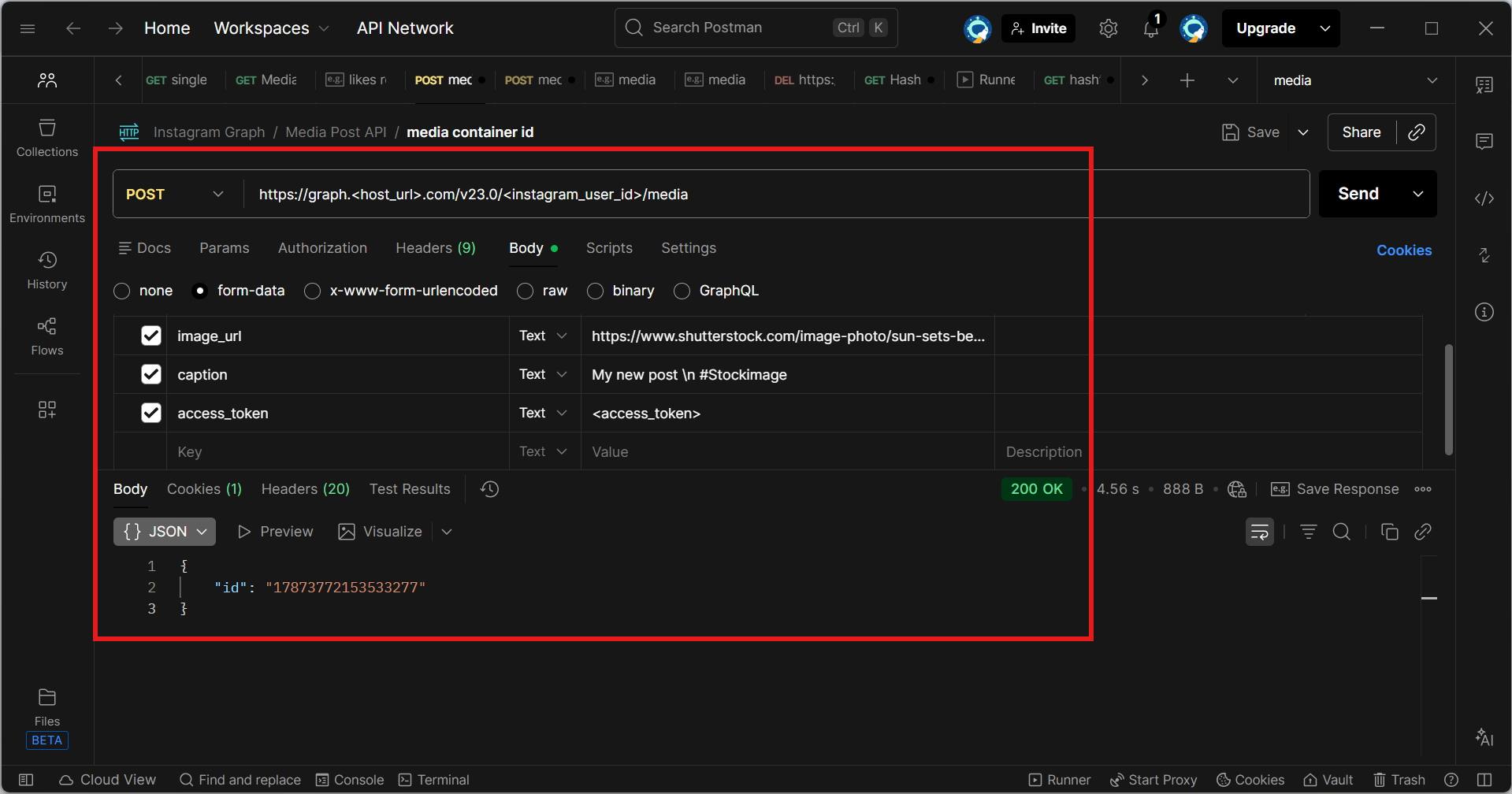
Step 2: Automate Instagram to publish the post creation container.
To publish the media, send a POST request to the /<IG_ID>/media_publish endpoint with the media publishing ID. Using this, we can completely post the media on Instagram.
Endpoint for Post-Publish:
https://graph.<host_url>.com/v23.0/<instagram_user_id>/media_publishParameters
creation_id: Set a post creation ID, either for a single post creation or a carousel post creation.
access_token: Set your app user’s access token.
Example Request:
curl --location 'https://graph.<host_url>.com/v23.0/<instagram_user_id>/media_publish' \
--form 'creation_id="<container_id>"' \
--form 'access_token="<instagram_access_token>"'
On success, your app receives a JSON response with the Instagram post-published ID.
{
  "id": "<media_id>"
}
Sample Request and Response.
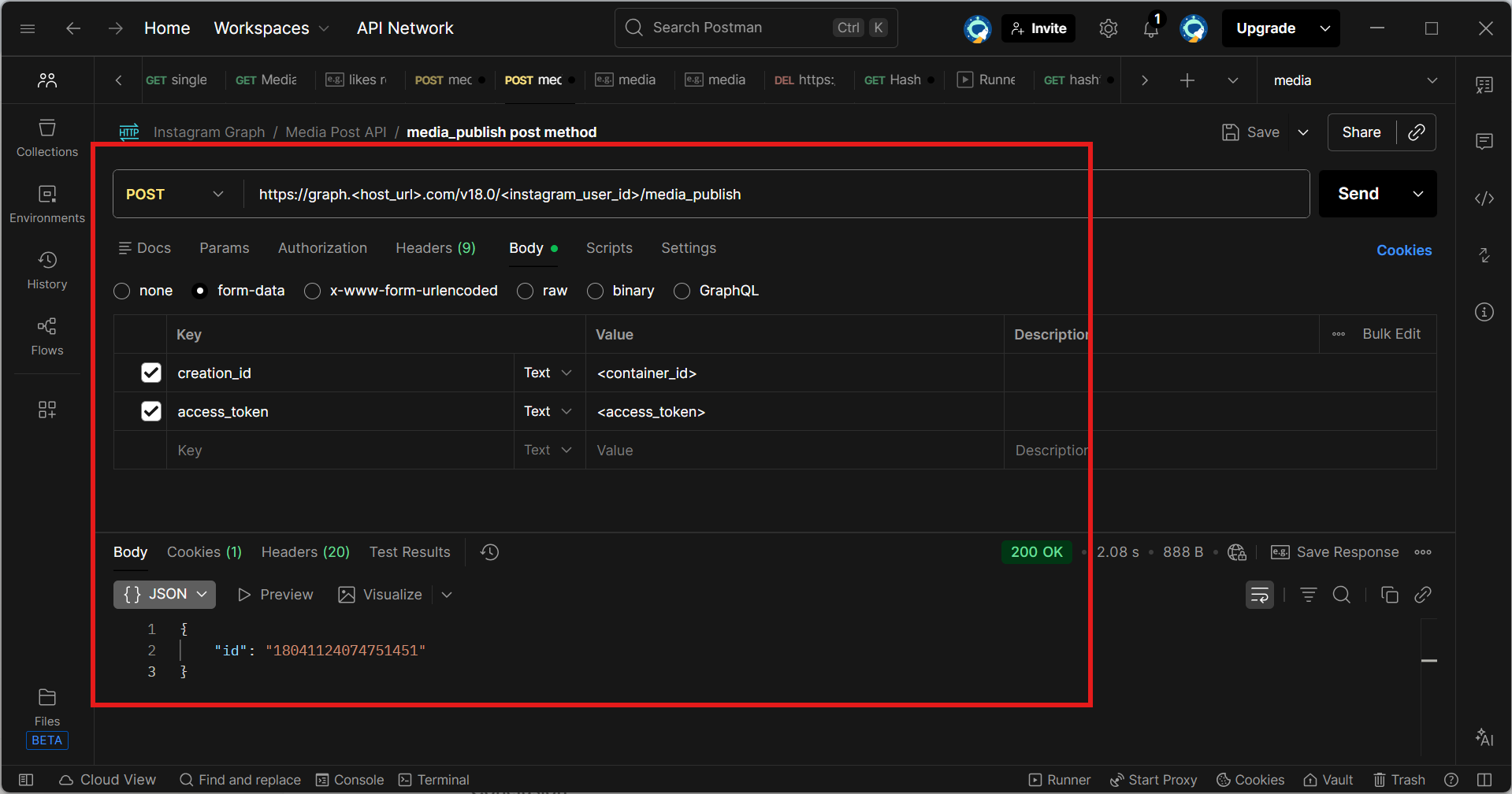
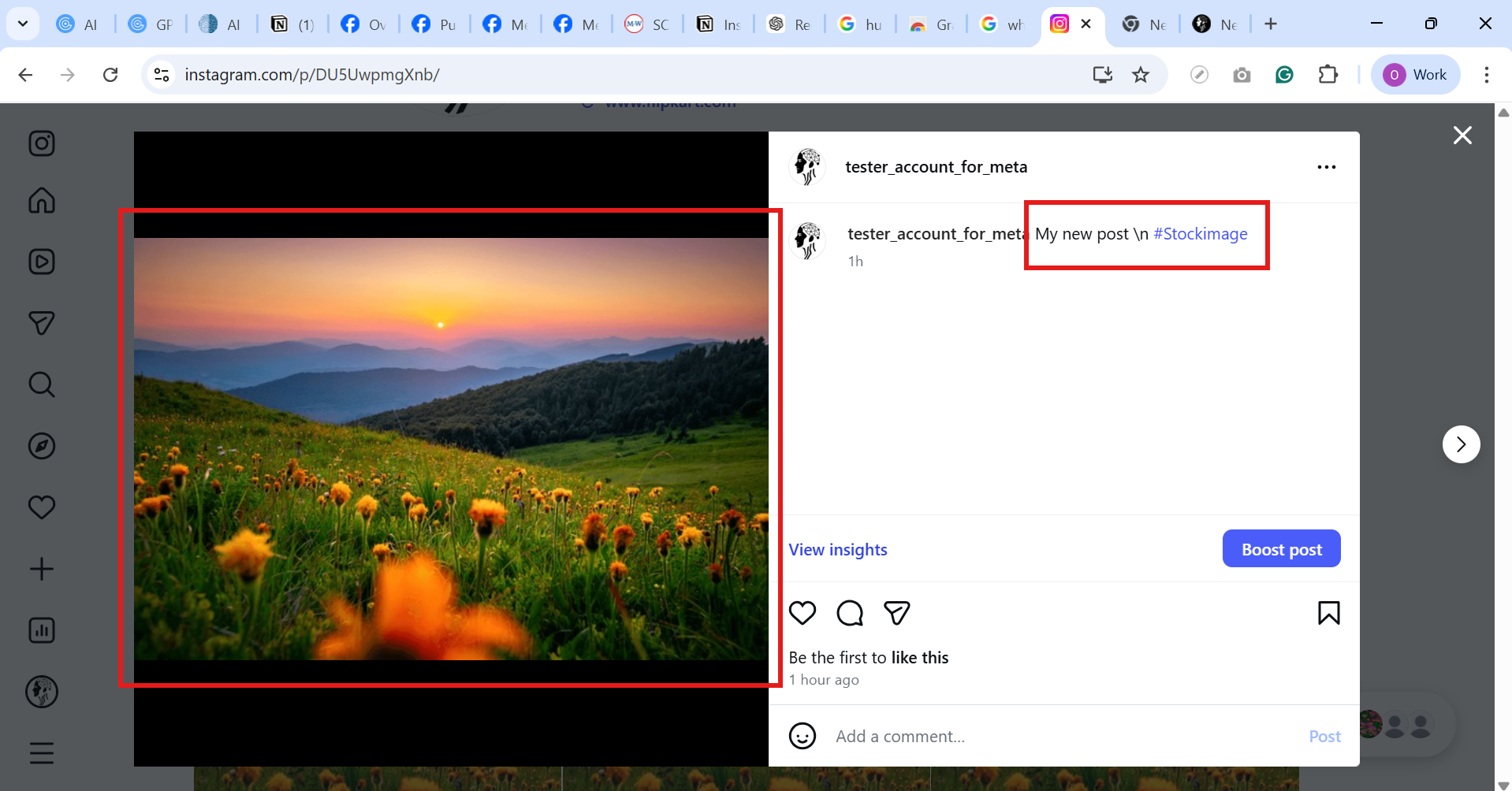
After publishing the automated Instagram post (Instagram page).
After publishing the post, step 2, using my business account, I see the media on my Instagram page. I attached the image.
This article uses automation to automate Instagram post creation and publishing, whether images, videos, or reels, and makes the process simple. It’s just a few easy steps; I explained in the previous section how you can schedule and publish your content without wasting time. There are no complicated system setups, just fast implementation and smooth, hassle-free automation.
This automation Instagram post does not work for one individual’s effort; it is a strong team collaboration. Every member contributes their ideas and dedication. We have successfully implemented this workflow in our product. Want to make Instagram posting easier? Want to automate Instagram posting? We have already simplified this whole working process on our website’s Agentzee workflow. Feel free to contact us.
What are the limitations and rate limits of the APIs?
API Rules and Payload
Instagram media to publish only supports the JPEG image configuration. Extended JPEG formats such as MPO and JPS are not promoted.
E-commerce tags are not supported.
Branded and identified content tags are not supported.
Filters are not supported.
API Rate Limit
Important: an Instagram account can publish at most 100 posts through the Instagram Graph API within a moving 24-hour window. Carousels count as a single post. This limit is enforced on the POST /<IG_ID>/media_publish endpoint when attempting to publish a post creation. We recommend that your app also enforce the publishing rate limit.
Now, let’s see how you can actually publish a post using the Instagram Graph API from Instagram post automation.
Conclusion
If you are trying to automate Instagram posts like single images, videos, carousels, and reels, it is significantly easier and effortless. It saves you time and effort. giving you more time to focus on creating content your audience will love. With automated Instagram posts and routine posting with an informative page, your page gets more popular, stays active, and remains connected with your followers and content. It also helps you stay organised and structured in your workflow. Then avoid last-minute post rushes and stressful situations.
Generally, automation is like having a useful apprentice that is easy to connect with, who keeps your Instagram growing smoothly and consistently.
If you need to set up the Instagram post automation through the Agentzee platform, we have already implemented this workflow. To integrate our Instagram post automation agent into your existing business and improve efficiency and productivity.
Check out our product.